
Viewing entries in
Registration

How to Register by Class + Teacher

How to Register by Class + Teacher

Help Center / Registration

This schedule view is helpful if you already know the class or teacher you want, or if you would like to register for more than one date of the same class.

You will first choose a category, then select your class, then choose the date or dates you would like to attend.

Step 1: Go to the Yoga Class Schedule page

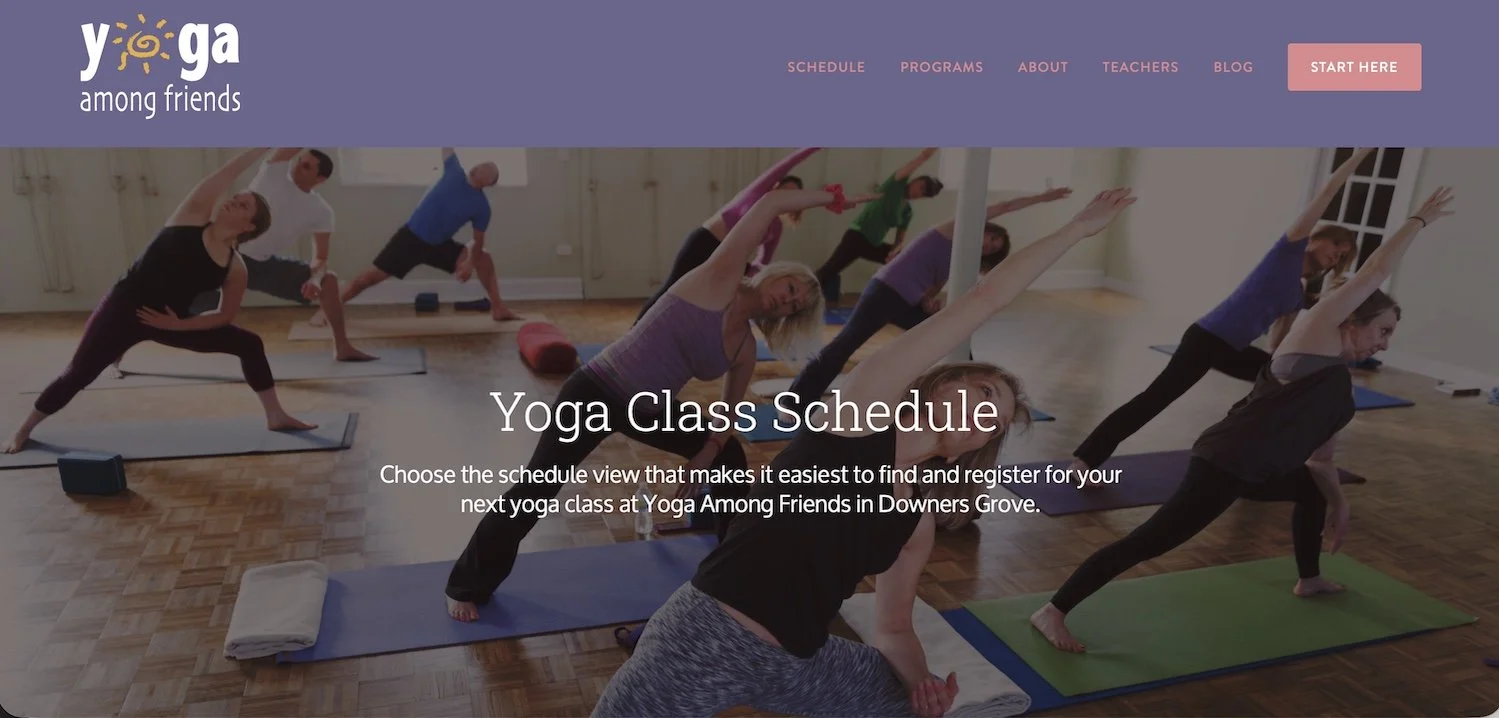
From the Yoga Among Friends website, click Schedule in the top menu.

You will arrive on the Yoga Class Schedule page.

Step 2: Choose how you would like to view the schedule

On the schedule page, you will see two options:

View Classes by Day + Time
Best if you are choosing a class based on your weekly schedule.

View by Class + Teacher
Best if you know the class or teacher you want, or you would like to book ahead.

To choose a class by name or teacher, click:

View by Class + Teacher
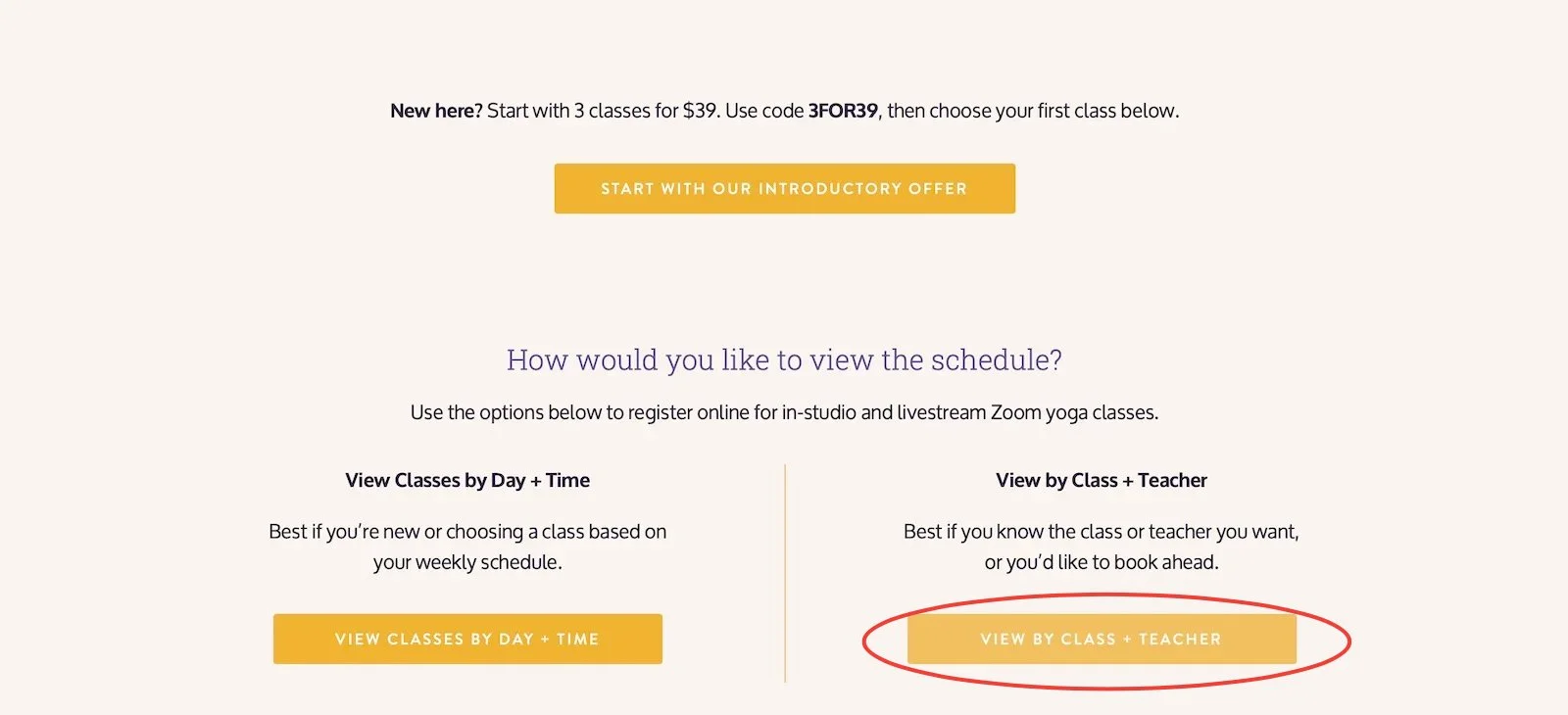
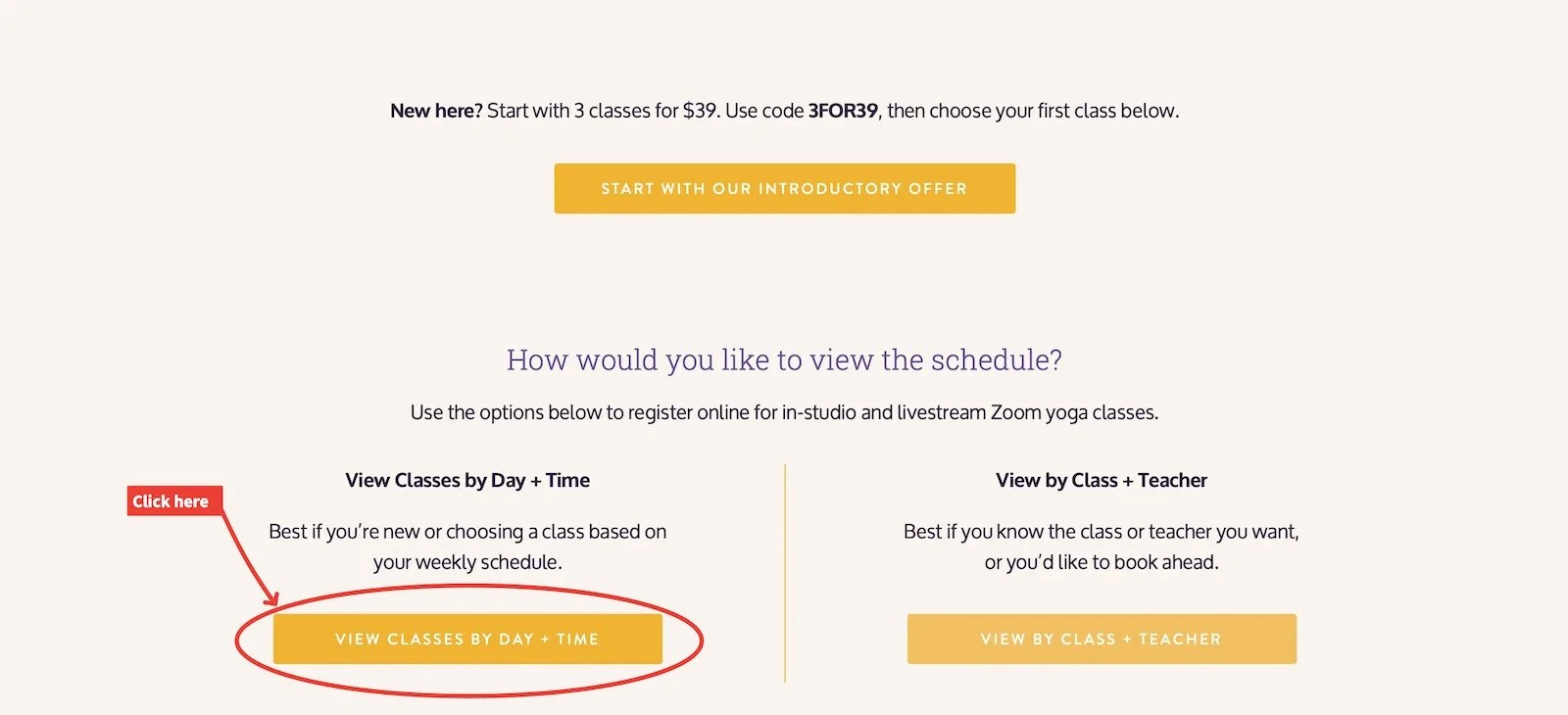
Schedule page showing buttons to view classes by day and time or by class and teacher.

Step 3: Select a category

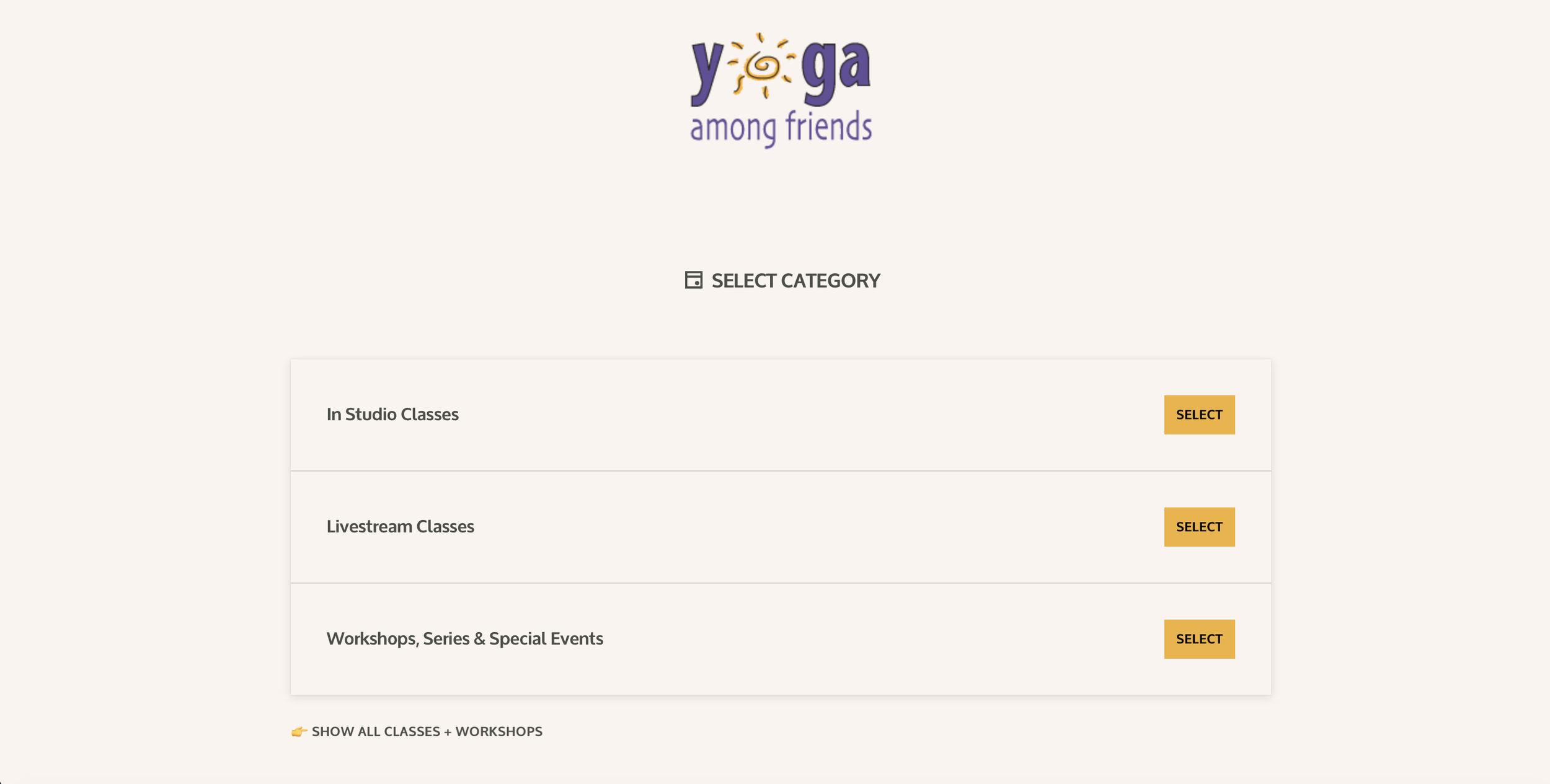
Next, you will see a list of categories.

Choose the category that matches how you would like to attend:

In Studio Classes
Choose this if you want to come to the studio in person.

Livestream Classes
Choose this if you want to attend online through Zoom.

Workshops, Series & Special Events
Choose this if you are registering for a workshop, series, or special event.

Click the yellow Select button next to the category you want.

Step 4: Choose your class

After you select a category, you will see a list of classes.

Scroll through the list until you find the class or teacher you want.

When you find the class, click the yellow Select button.
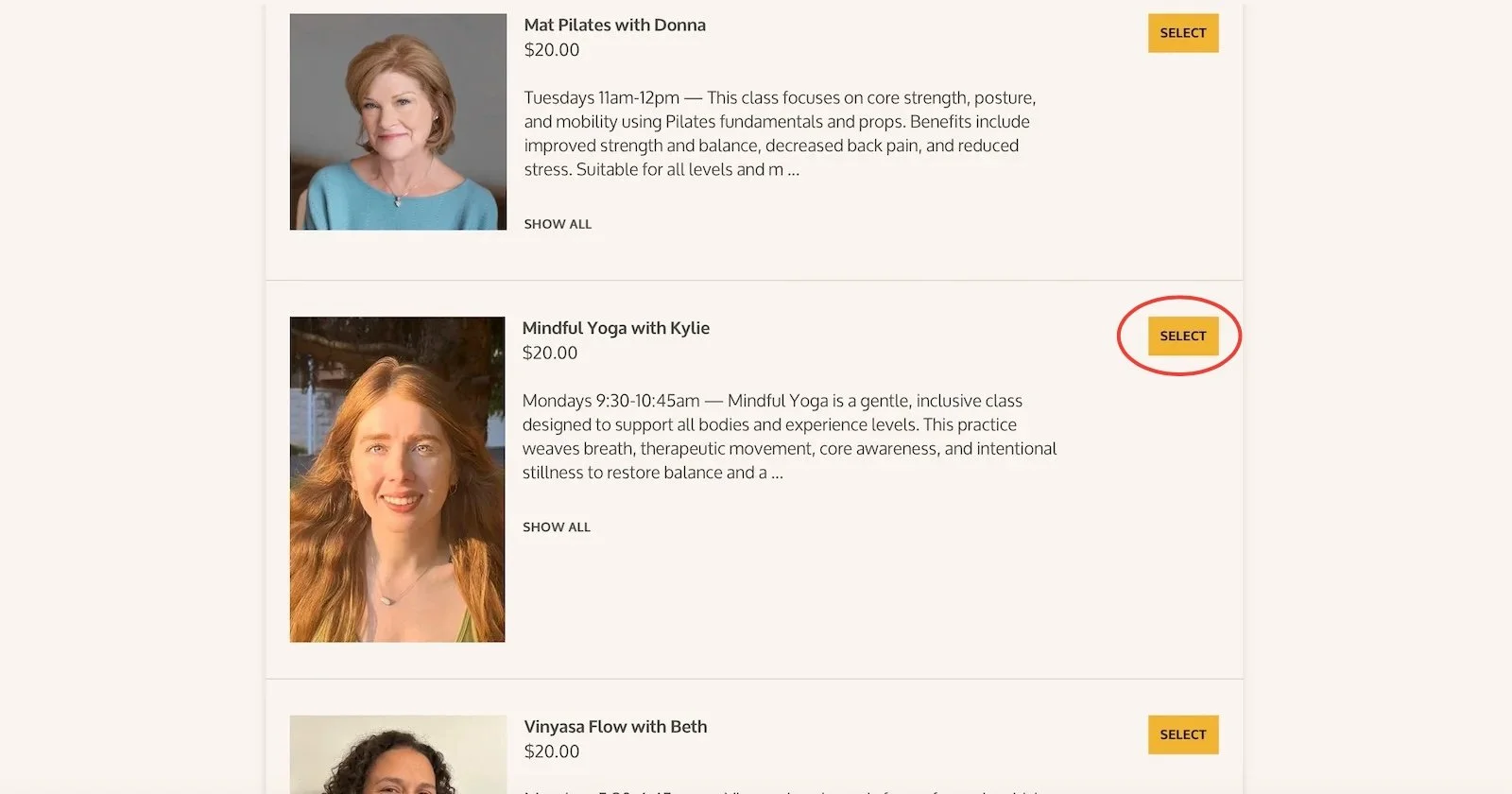
List of Yoga Among Friends classes organized by class name and teacher.

Step 5: Choose a date and time

After you select a class, you will see a calendar.

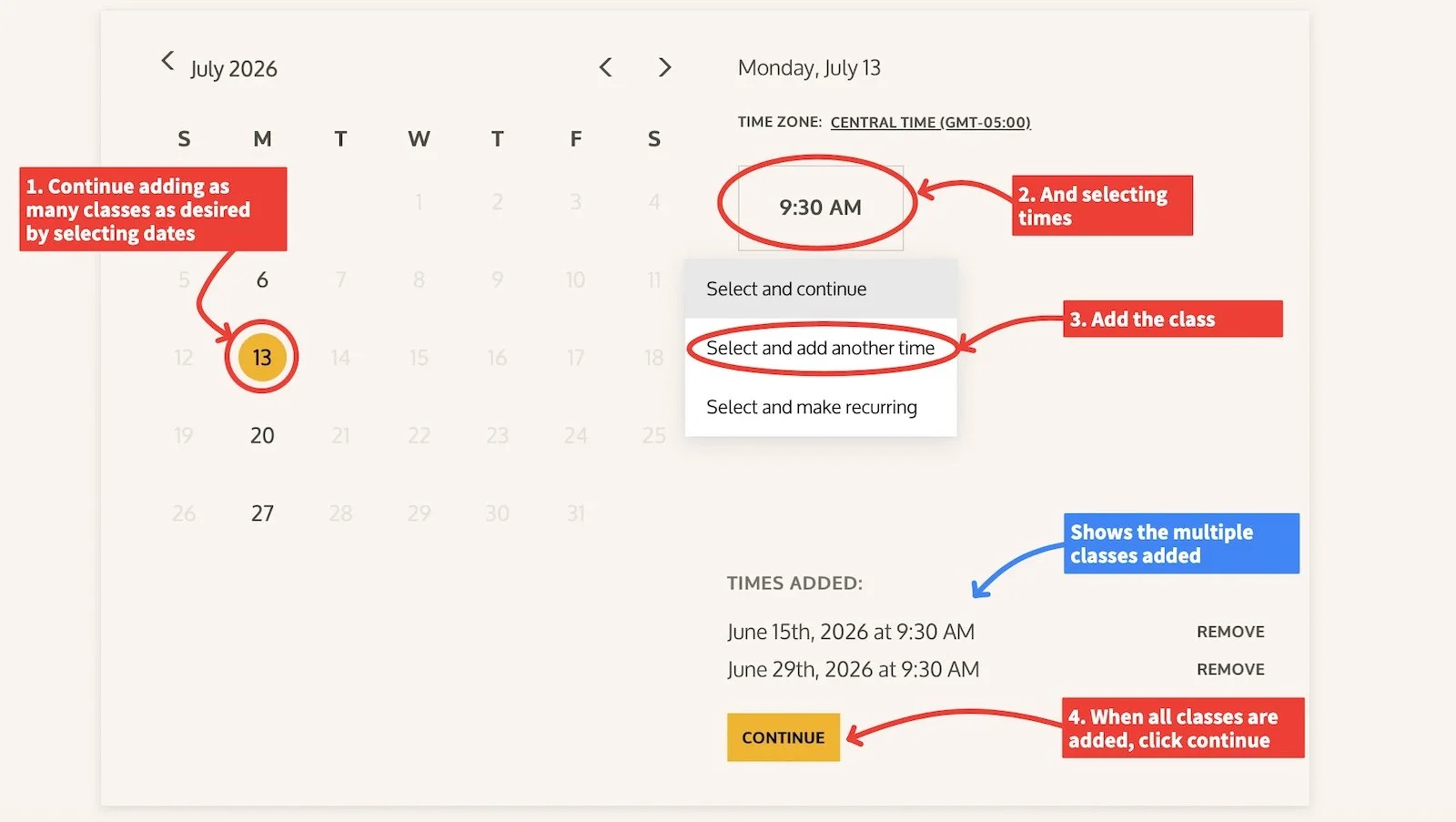
Available class dates will appear on the calendar. Click the date you want.

Then click the class time.
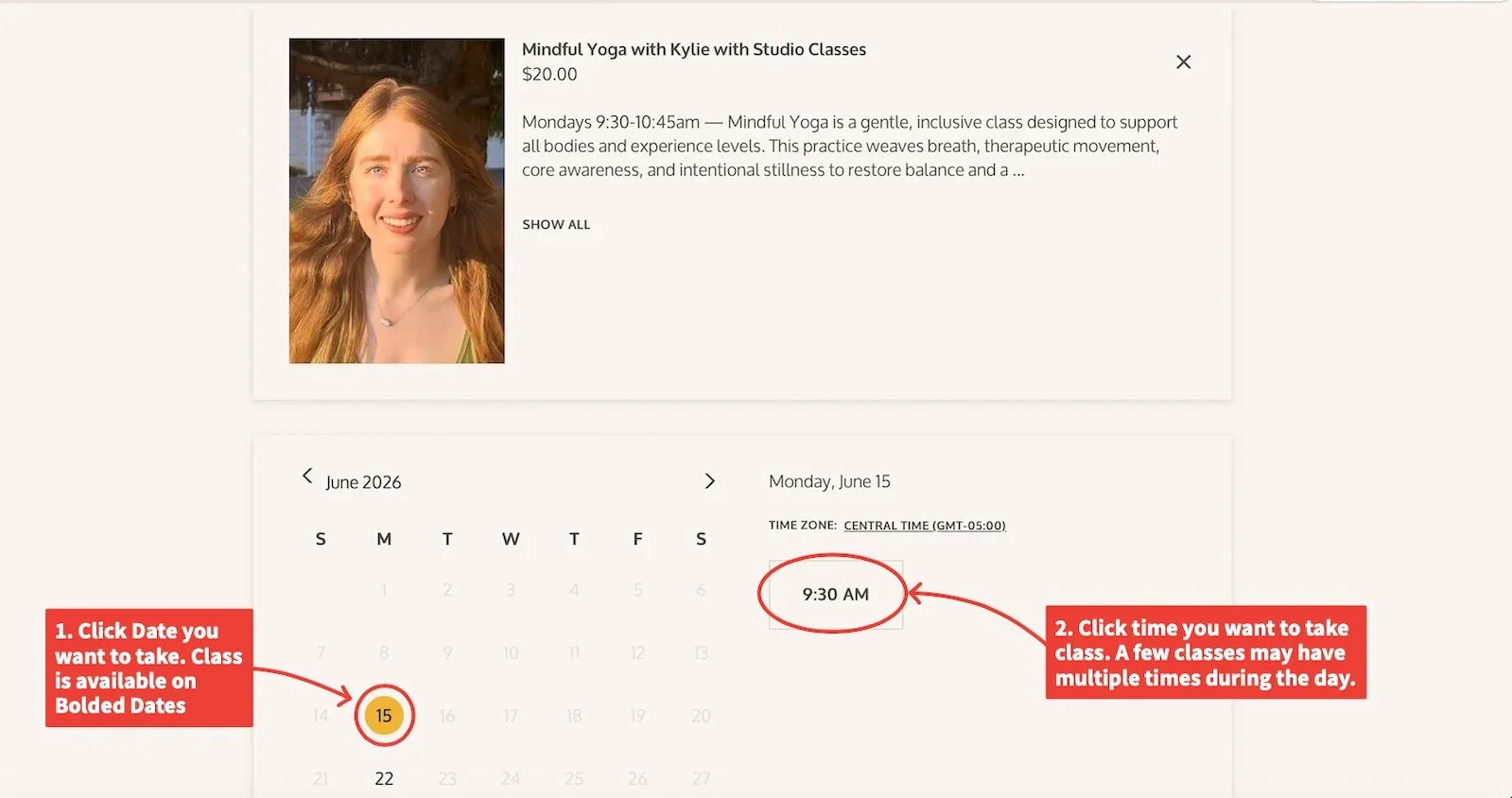
Calendar screen showing available dates and a 9:30 AM class time.

Step 6: Choose how you want to register

After you click the class time, you may see three options:

Select and continue
Choose this if you want to register for one class date.

Select and add another time
Choose this if you want to add more dates yourself.

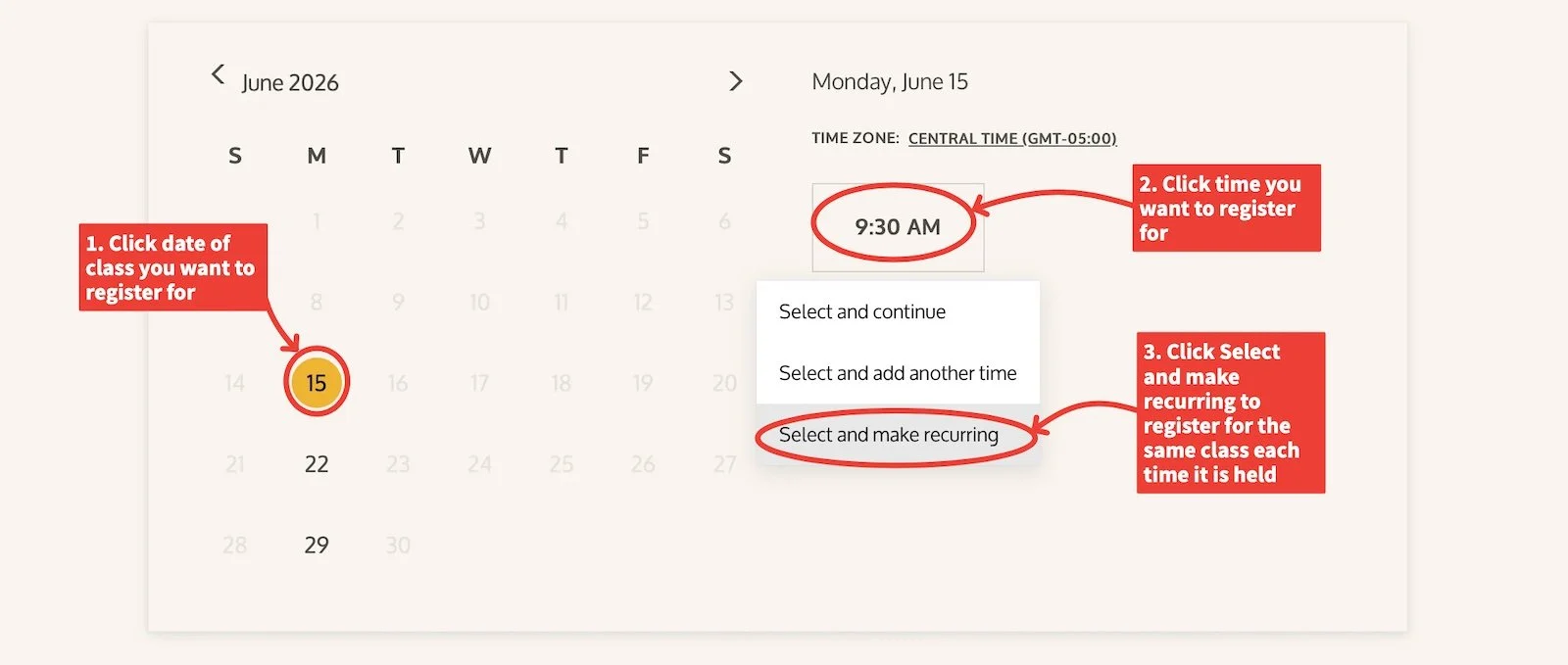
Select and make recurring
Choose this if you want to register for the same weekly class several times.

You only need to choose one of these options. Use the option that matches how many class dates you want to register for.
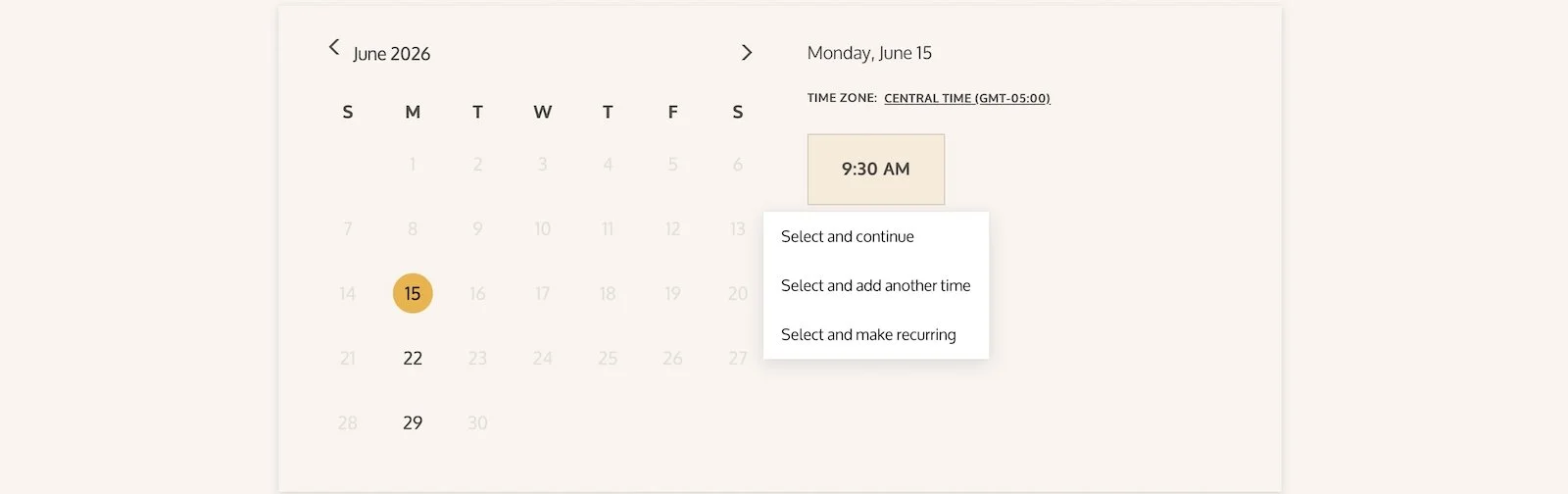
Time selection menu showing options to select and continue, add another time, or make recurring.

Step 7: If registering for one class date

If you are only registering for one date, click:

Select and continue

You will move to the information form.
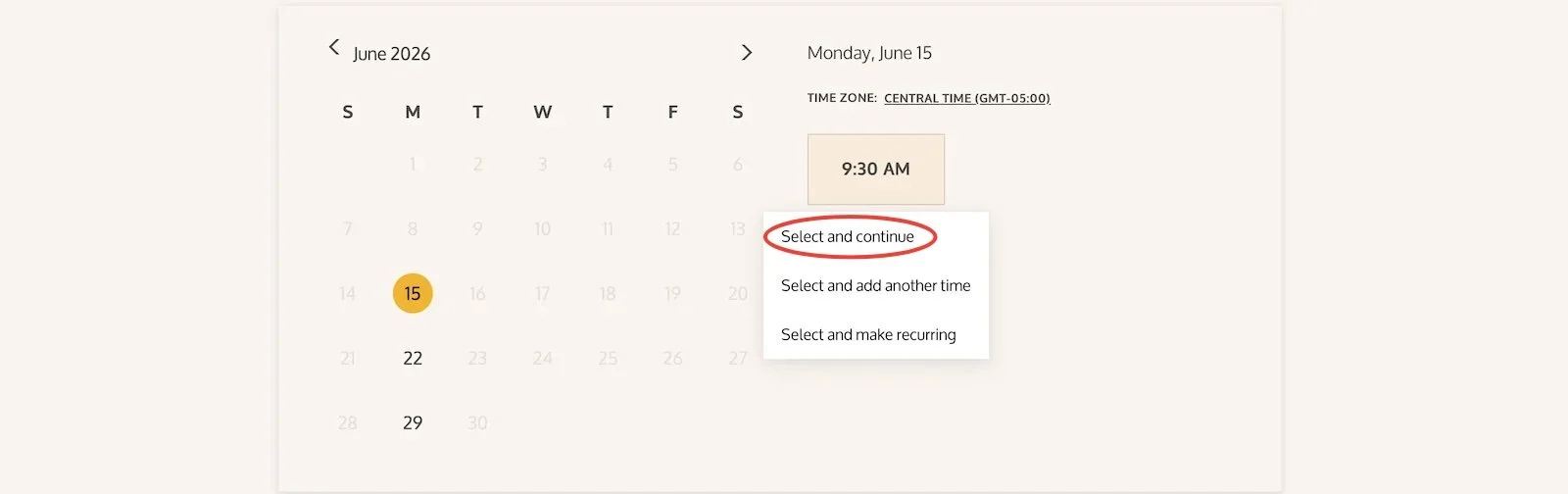
Student chooses one date/time and Time selection  and continues,

Step 8: Because students may add more than one additional date.

If you want to choose more than one date, click:

Select and add another time
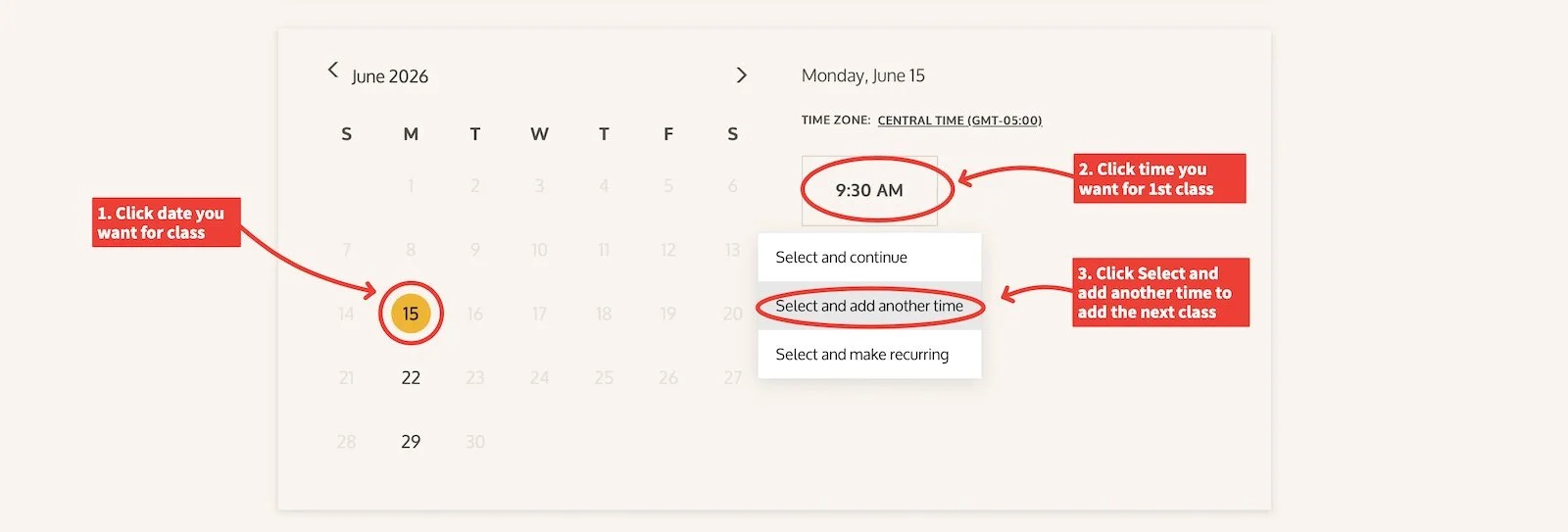
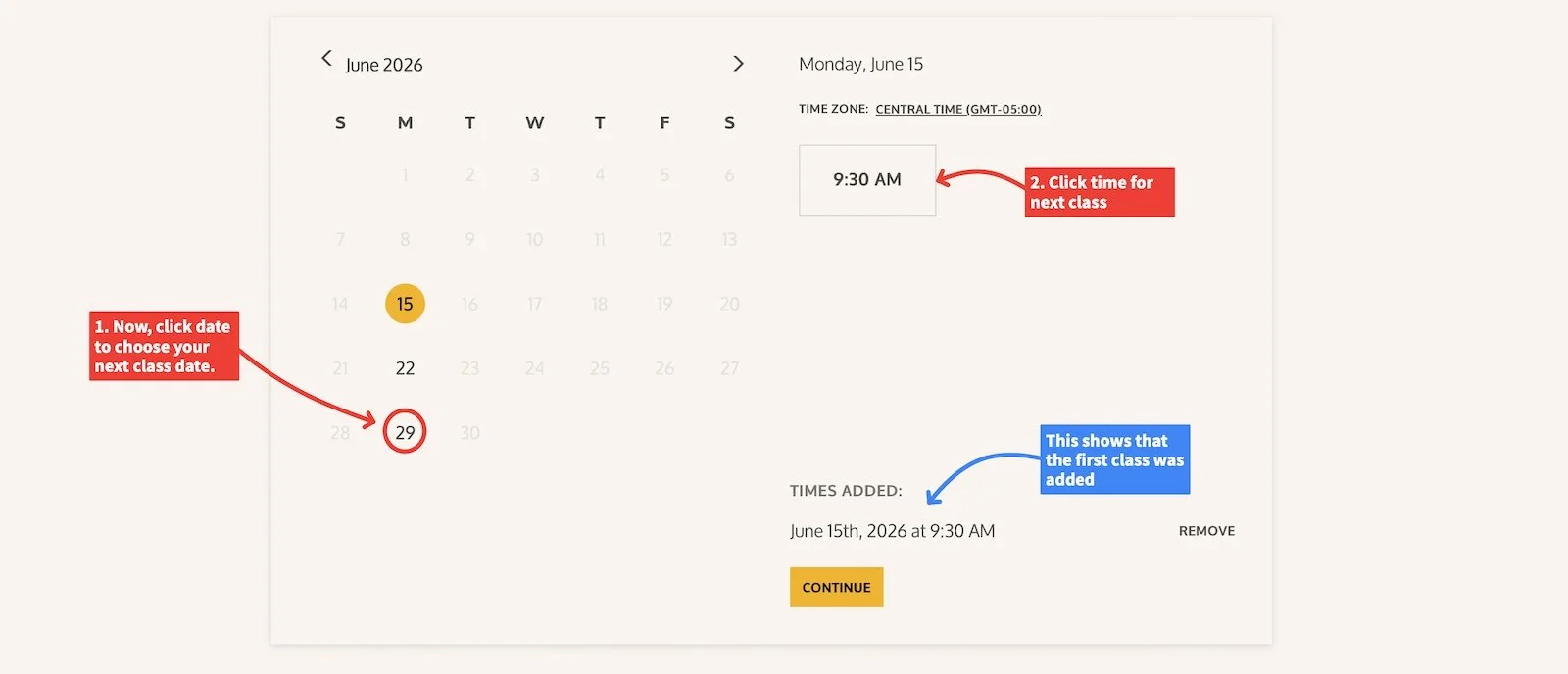
The first date will be added to your list. You can then click another available date on the calendar and choose the class time again.

You may repeat this until you have added the dates you want.

When you are finished, click:

Continue

Step 9: If making the class recurring

If you want to register for the same class for several weeks, click:

Select and make recurring
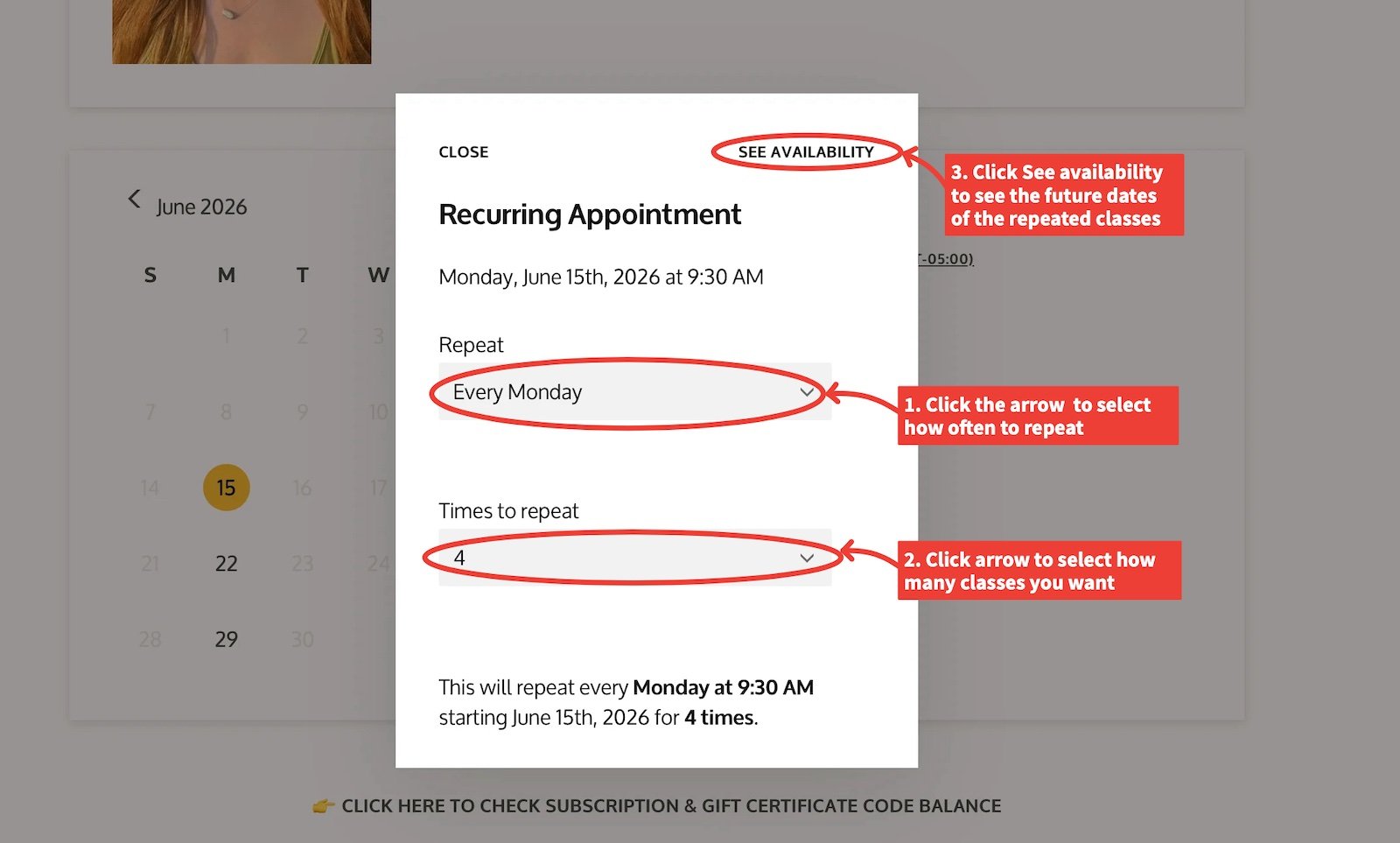
A recurring appointment window will open.

You may be able to choose:

How often the class repeats
How many times you want to repeat it

After choosing your recurring options, click:

See Availability
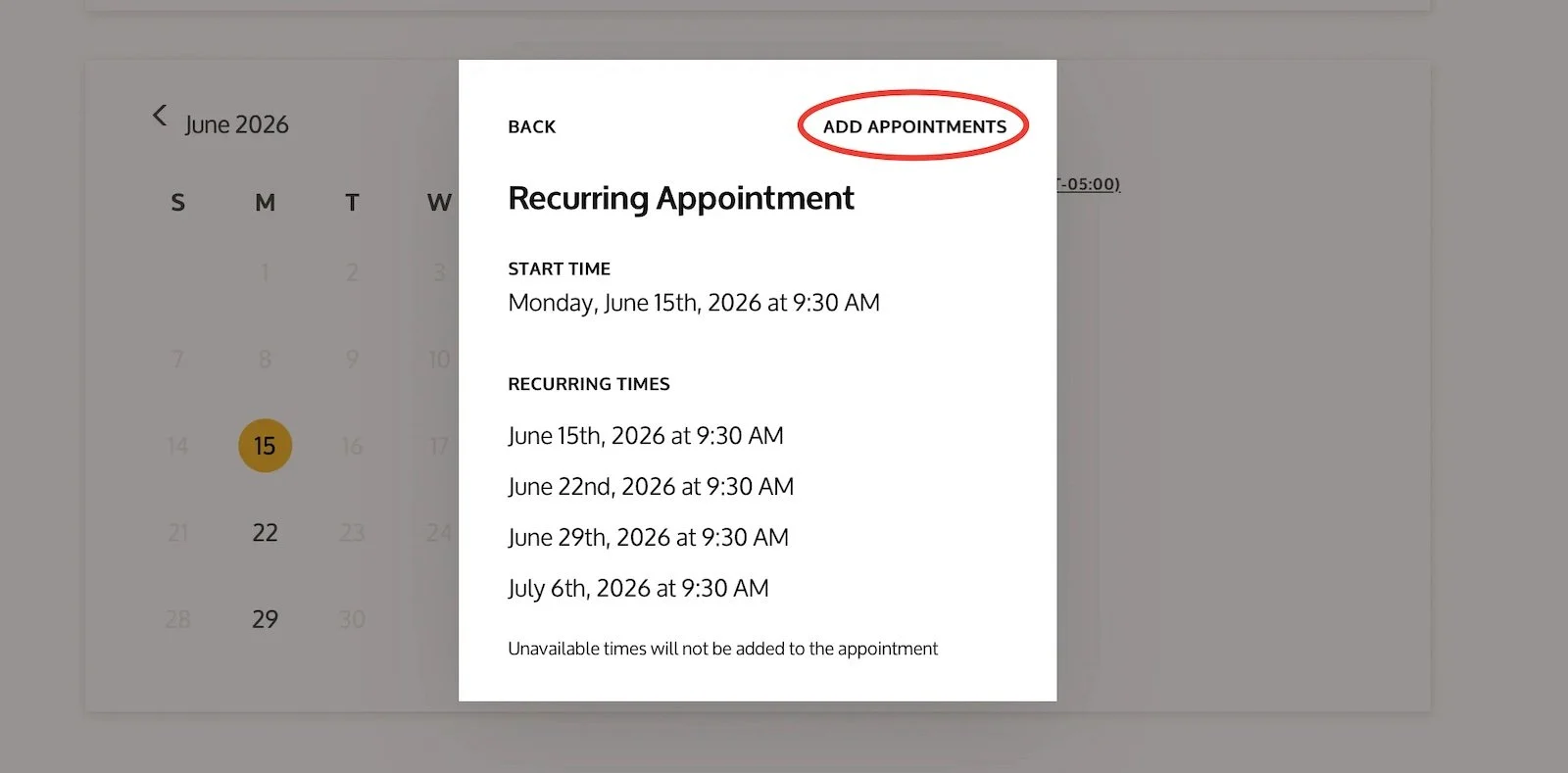
You will then see the dates that will be added.

Please review the dates carefully —before clicking Add Appointments.
Unavailable times will not be added.

If the dates look correct, click:

Add Appointments
You will return to the registration page and see the dates added to your appointment list.

Then click:

Continue
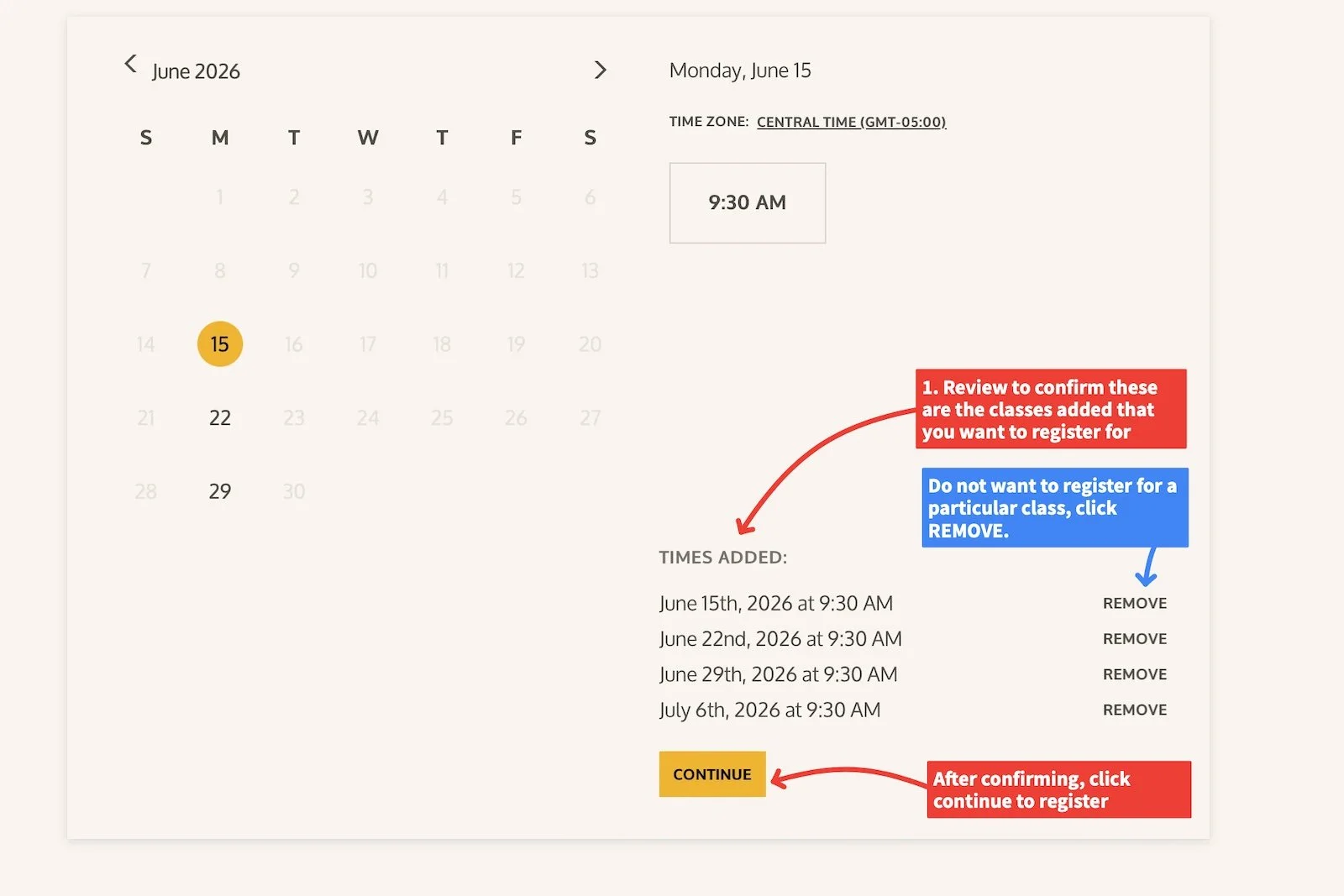

Step 10: Review the class or classes you selected

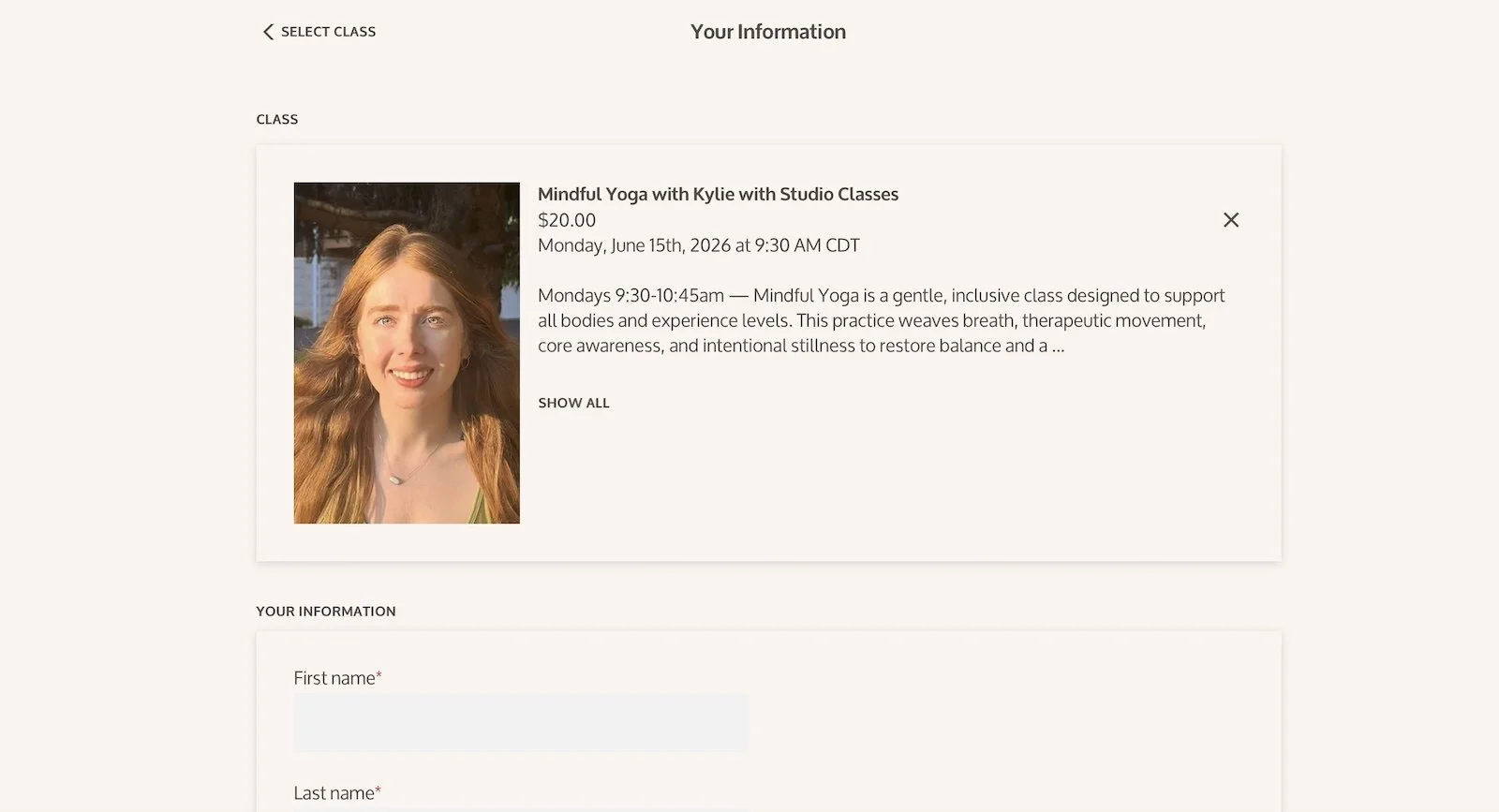
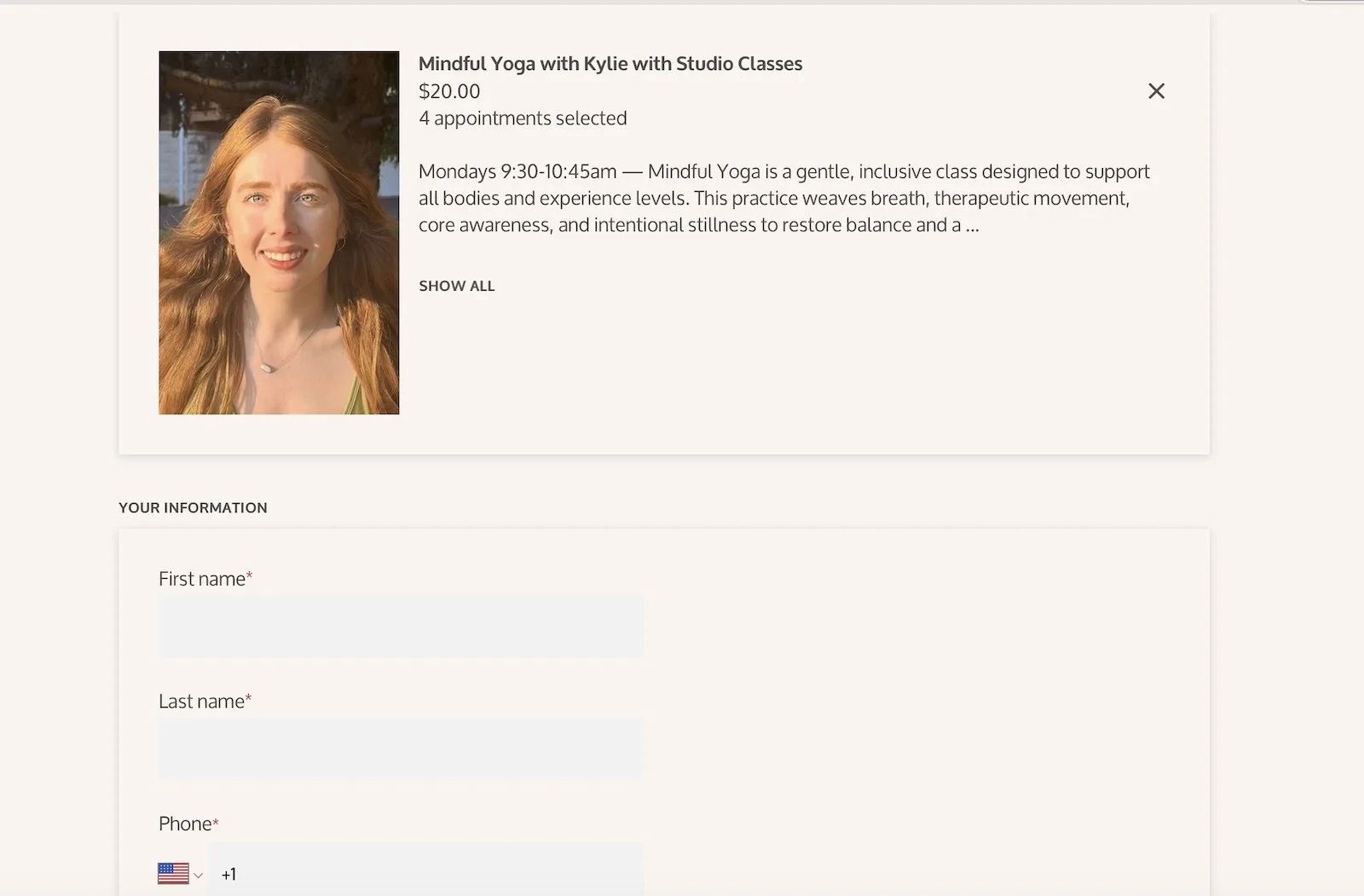
Before entering your information, review the class details at the top of the page.

Please check:

  • The class name

  • The teacher

  • Whether you selected the correct category: In Studio Classes or Livestream Classes

    If anything looks incorrect, use the X in the upper right of the class box to remove the selection and start again.

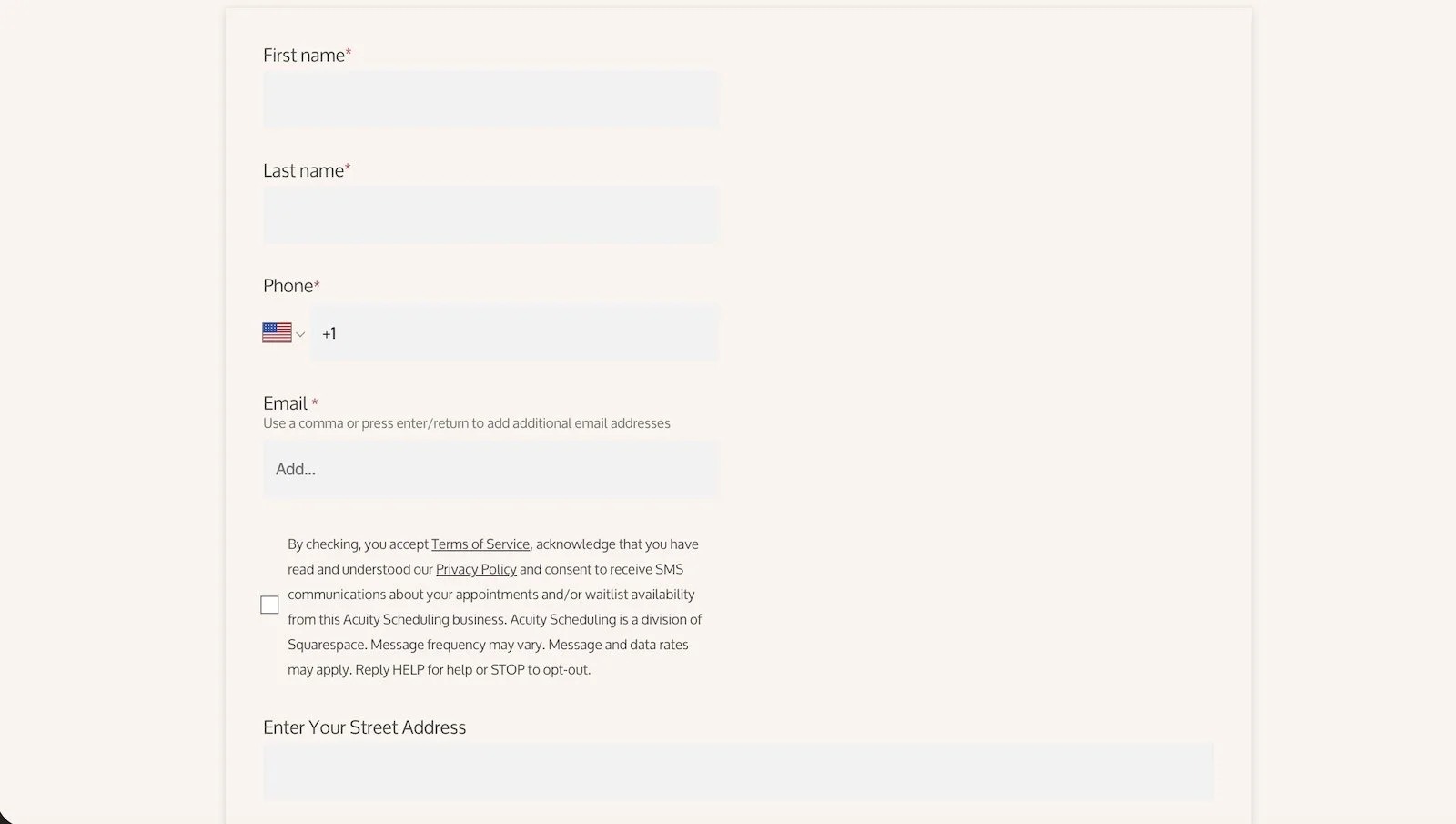
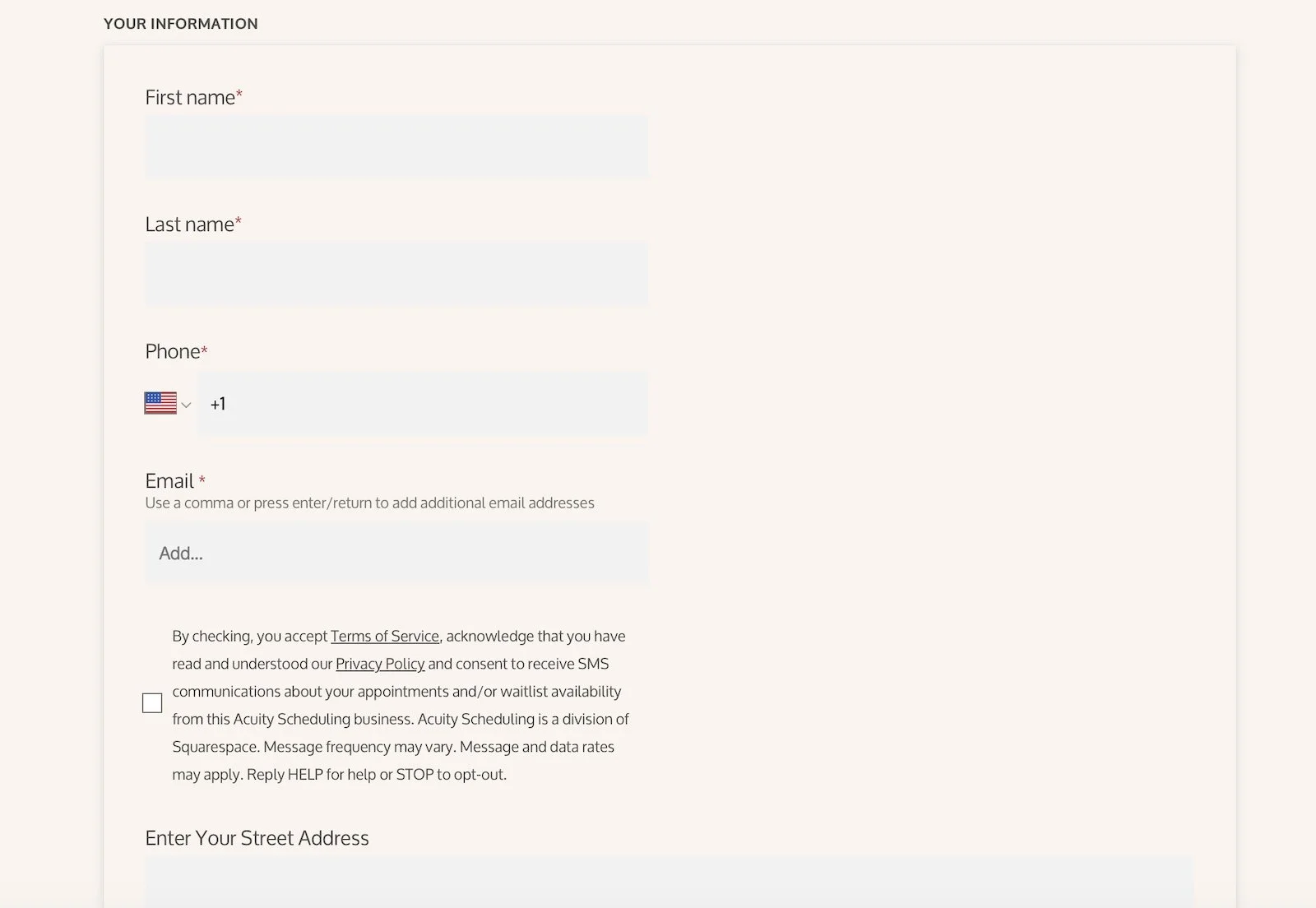
Step 11: Enter your information

Fill in the required fields, including:

First name
Last name
Phone
Email
Street address

You will also see checkboxes for studio policies and email list acknowledgment.

Please read and check the required boxes before continuing.

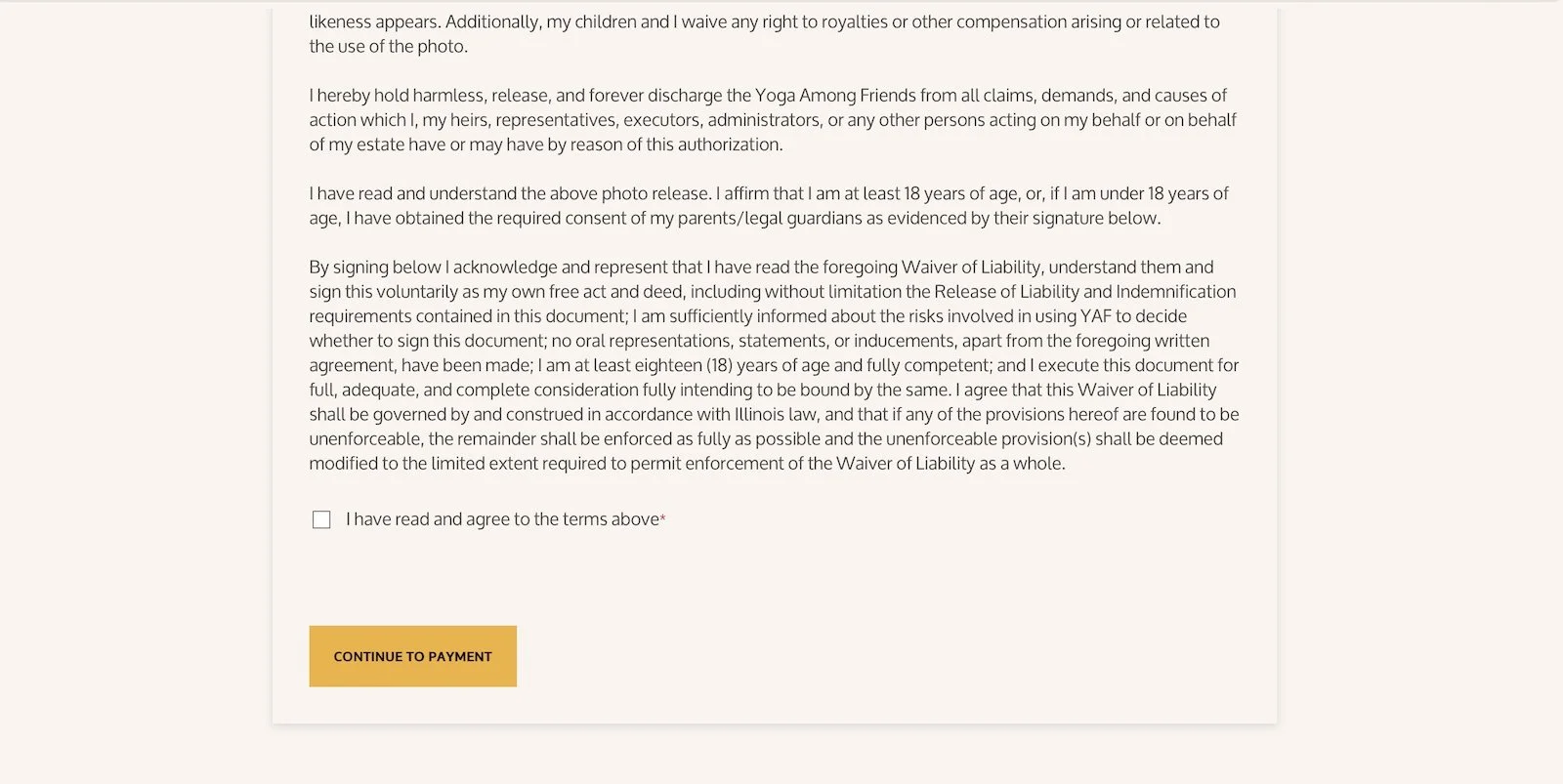
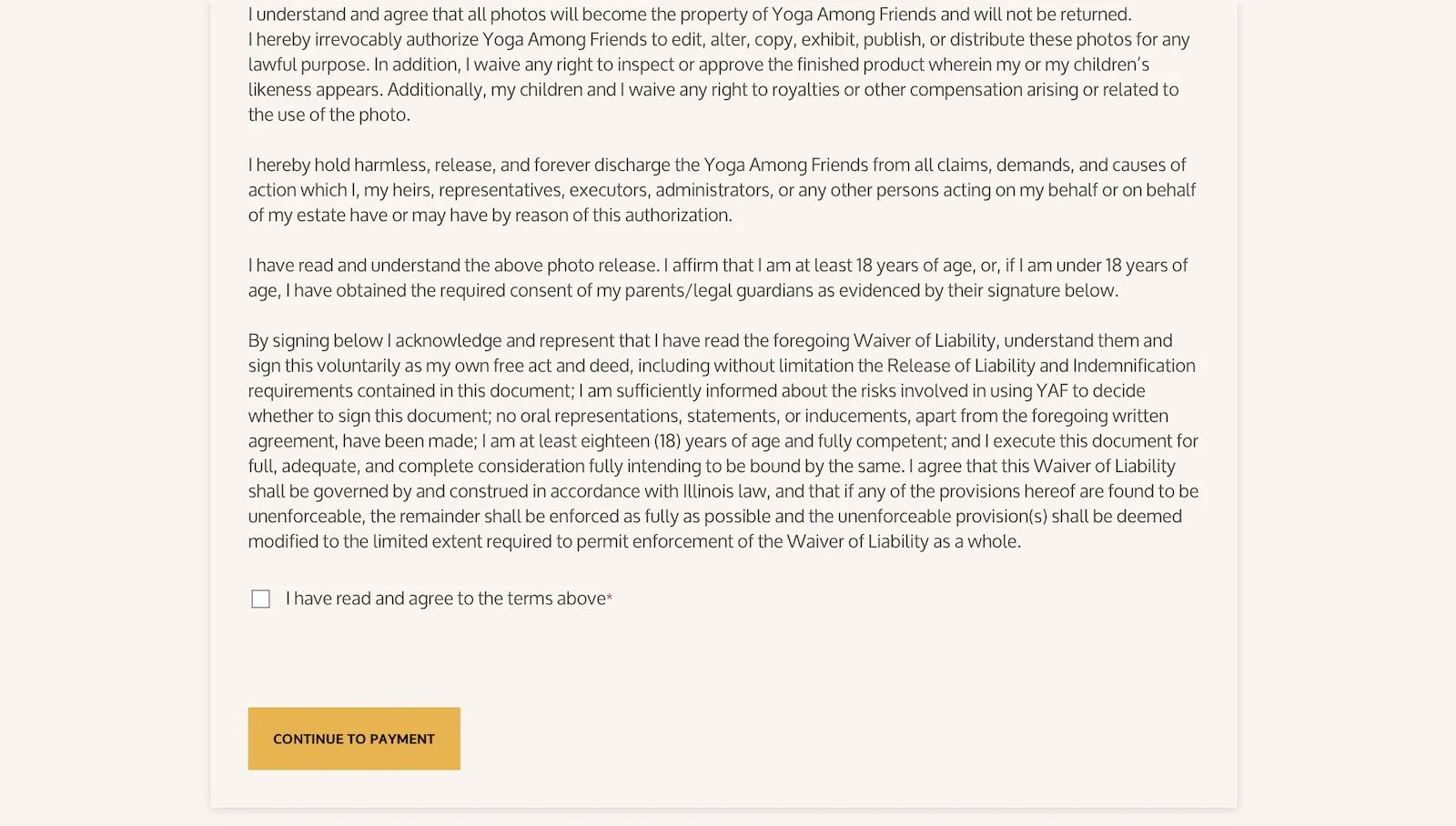
Step 12: Agree to the terms

Near the bottom of the form, you will see the studio waiver and policies.

Check the box that says:

I have read and agree to the terms above

Then click:

Continue to Payment

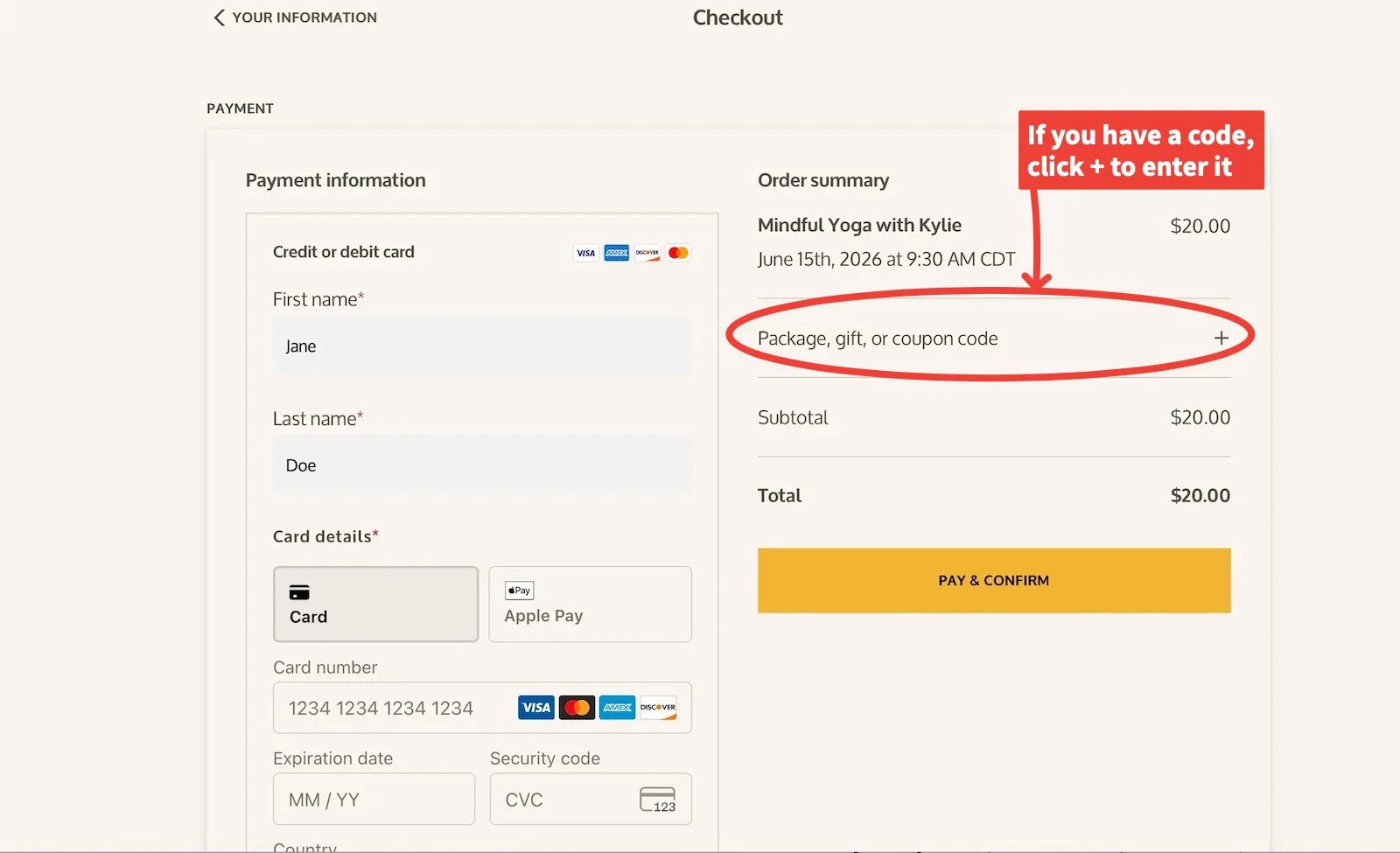
Step 13: Enter payment or use a package, gift, or coupon code

On the checkout page, you will see your order summary.

If you are paying for your class registration, enter your credit or debit card information, then click:

Pay & Confirm

If you have a subscription, gift certificate, or coupon code, look for:

Package, gift, or coupon code

Click the plus sign, enter your code, and click Apply.

Step 14: Confirm your registration

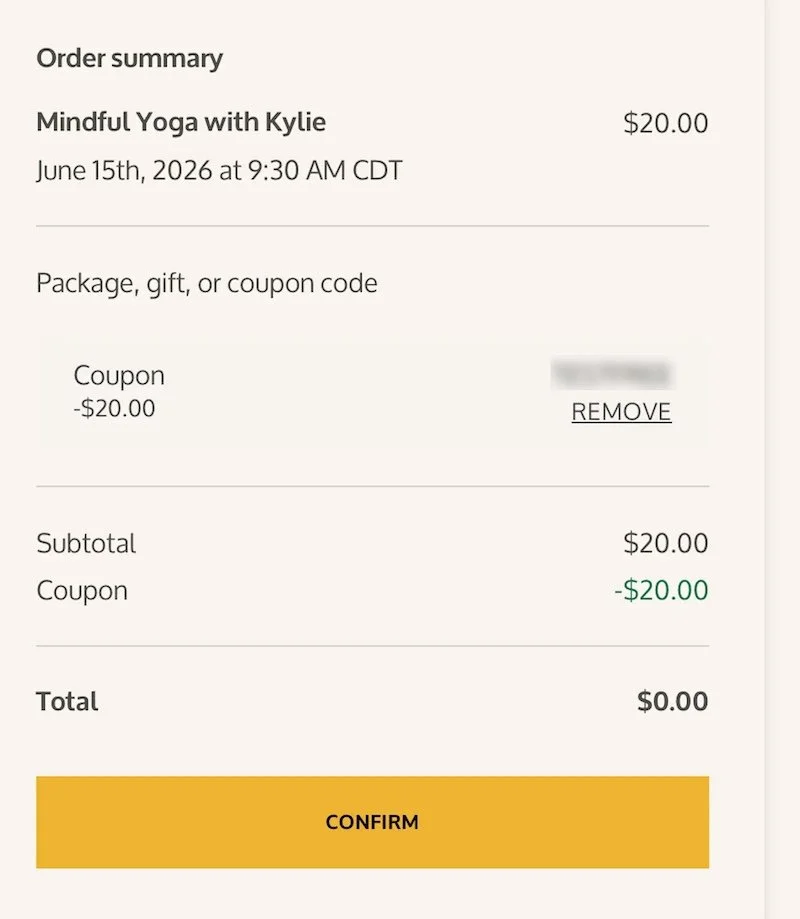
After your payment or code is accepted, click:

Pay & Confirm

or, if your total is $0 after applying a code:

Confirm
 

Step 15: Look for the confirmation screen

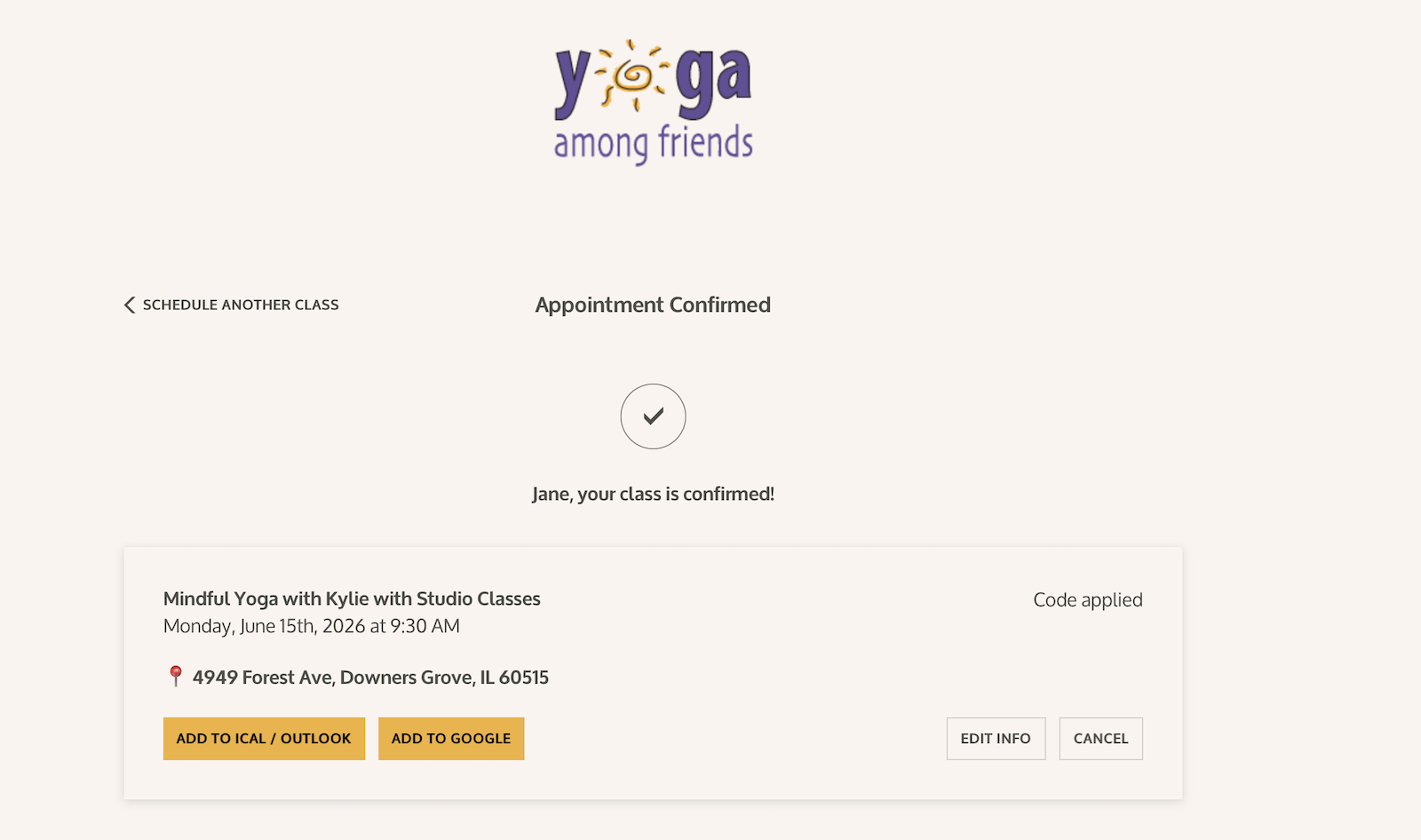
When your registration is complete, you will see a confirmation message that says:

Appointment Confirmed

or

Your class is confirmed

You may also see buttons to add the class to your calendar.

Step 16: Check your email

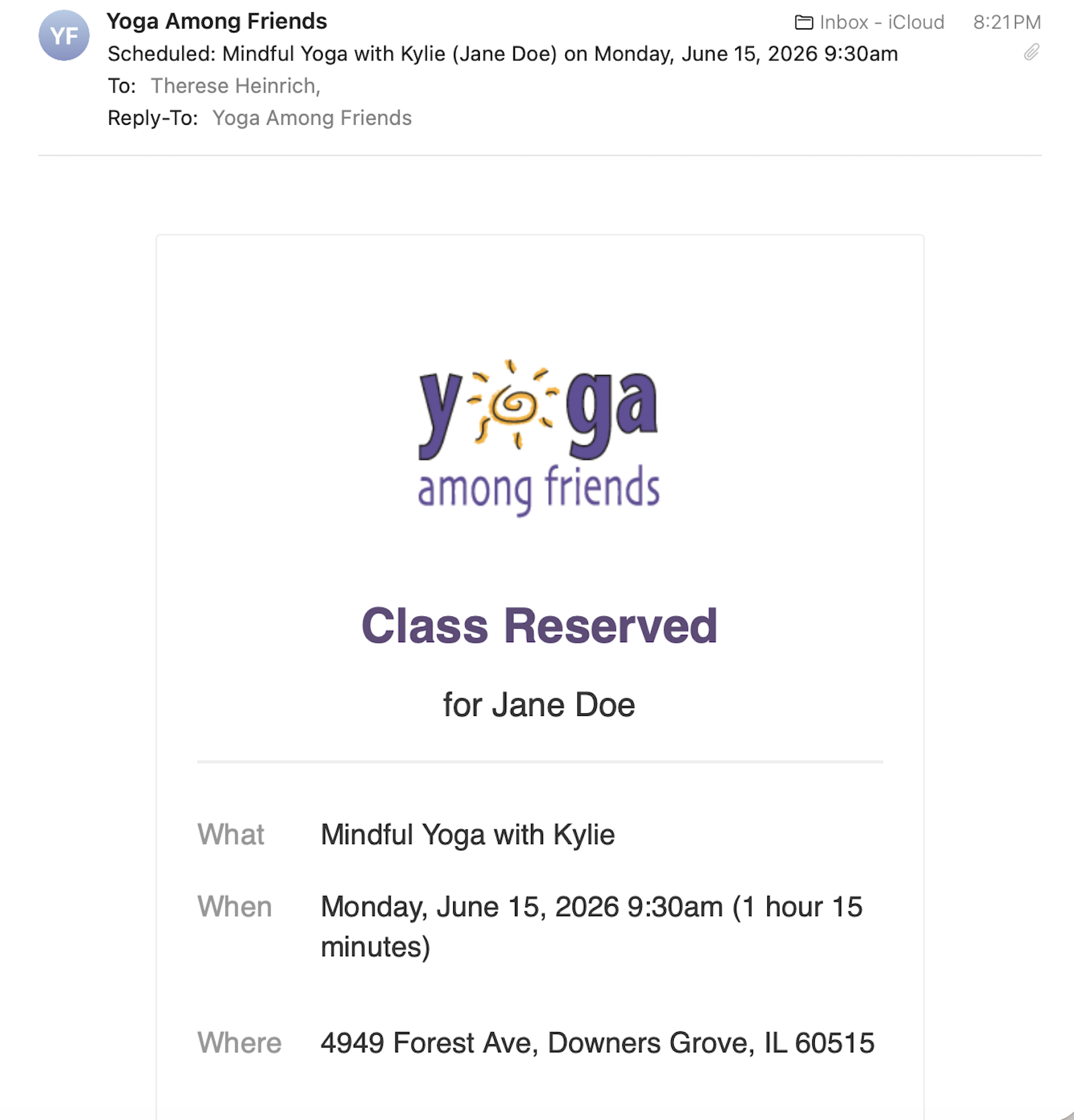
You will also receive a confirmation email from Yoga Among Friends.

The email will include:

The class name
The date and time
The studio address for in-person classes
A link to change or cancel your class
Calendar buttons, if you would like to add the class to your calendar

For Zoom classes, please watch your email for the Zoom class information.
 

Important note for Zoom students

Zoom classes are listed separately and usually appear directly after the matching studio class.

Once you’ve registered, your Zoom link is available in three possible places:

  1. Your initial confirmation email
  2. Your 24-hour and 2-hour reminder emails
  3. Inside your Yoga Among Friends online account under Studio + Online Classes → Login → Appointments → Upcoming

To find your Zoom link inside your Yoga Among Friends online account, you must have created an account and logged in before registering for class.

If you register as a guest, you can still attend class. Please use the Zoom link provided in your confirmation email or reminder emails.


Need a bit of help?

If you have questions or need help registering, please contact us.


How to Register for a Class by Day + Time

How to Register for a Class by Day + Time

Help Center / Registration

How to Register for a Class by Day + Time

This schedule view is helpful if you know the day or time you would like to come to class. When you choose a class from this view, you are registering only for the specific day and time shown.

Planning to attend the same class more than once? Please use the View by Class + Teacher option instead. Learn how to register by class name or teacher.

This schedule view lists classes, workshops, and special events by date and time. Some classes are offered both in studio and online through Zoom, so please choose the listing that matches how you would like to attend.

If you are coming in person, choose Studio Classes. If you are attending online, choose Zoom Classes. Zoom listings appear separately and are usually shown directly after the matching studio class.


Step 1: Go to the Yoga Class Schedule page

From the Yoga Among Friends website, click Schedule in the top menu.

You will arrive on the Yoga Class Schedule page.


Step 2: Choose how you would like to view the schedule

On the schedule page, you will see two options:

View Classes by Day + Time
Best if you are choosing a class based on your weekly schedule.

View by Class + Teacher
Best if you already know the class or teacher you want.

To choose a class by day and time, click:

View Classes by Day + Time


Step 3: Look for the date you want

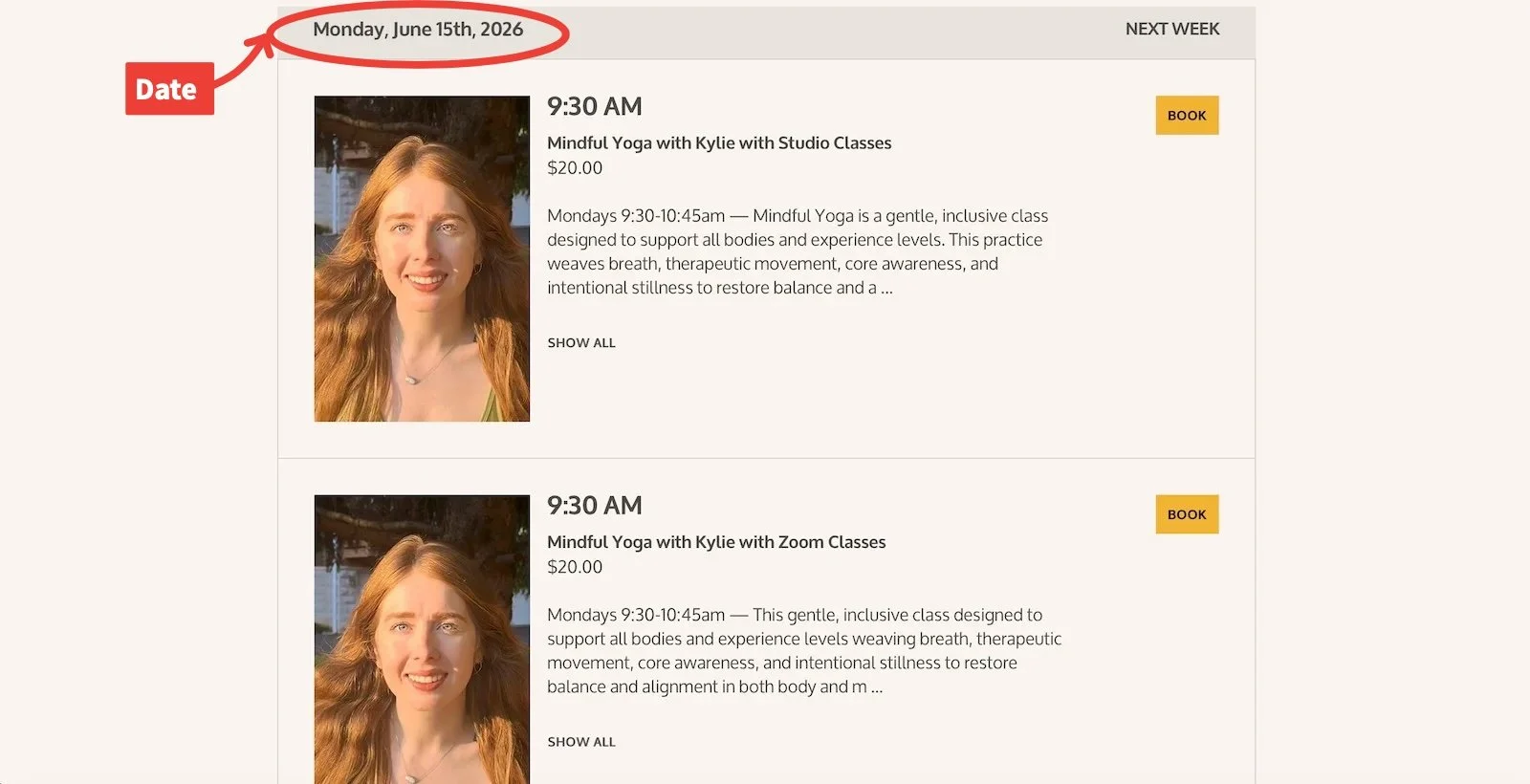
The schedule will open with classes listed by date.

At the top of each section, you will see the date. You may scroll down the page to look through upcoming classes and workshops.

You may also click Next Week to move forward in the schedule.


Step 4: Choose Studio or Zoom carefully

Important note for Zoom students

Zoom classes are listed separately and usually appear directly after the matching studio class.

Once you’ve registered, your Zoom link is available in three possible places:

  1. Your initial confirmation email
  2. Your 24-hour and 2-hour reminder emails
  3. Inside your Yoga Among Friends online account under Studio + Online Classes → Login → Appointments → Upcoming

To find your Zoom link inside your Yoga Among Friends online account, you must have created an account and logged in before registering for class.

If you register as a guest, you can still attend class. Please use the Zoom link provided in your confirmation email or reminder emails.

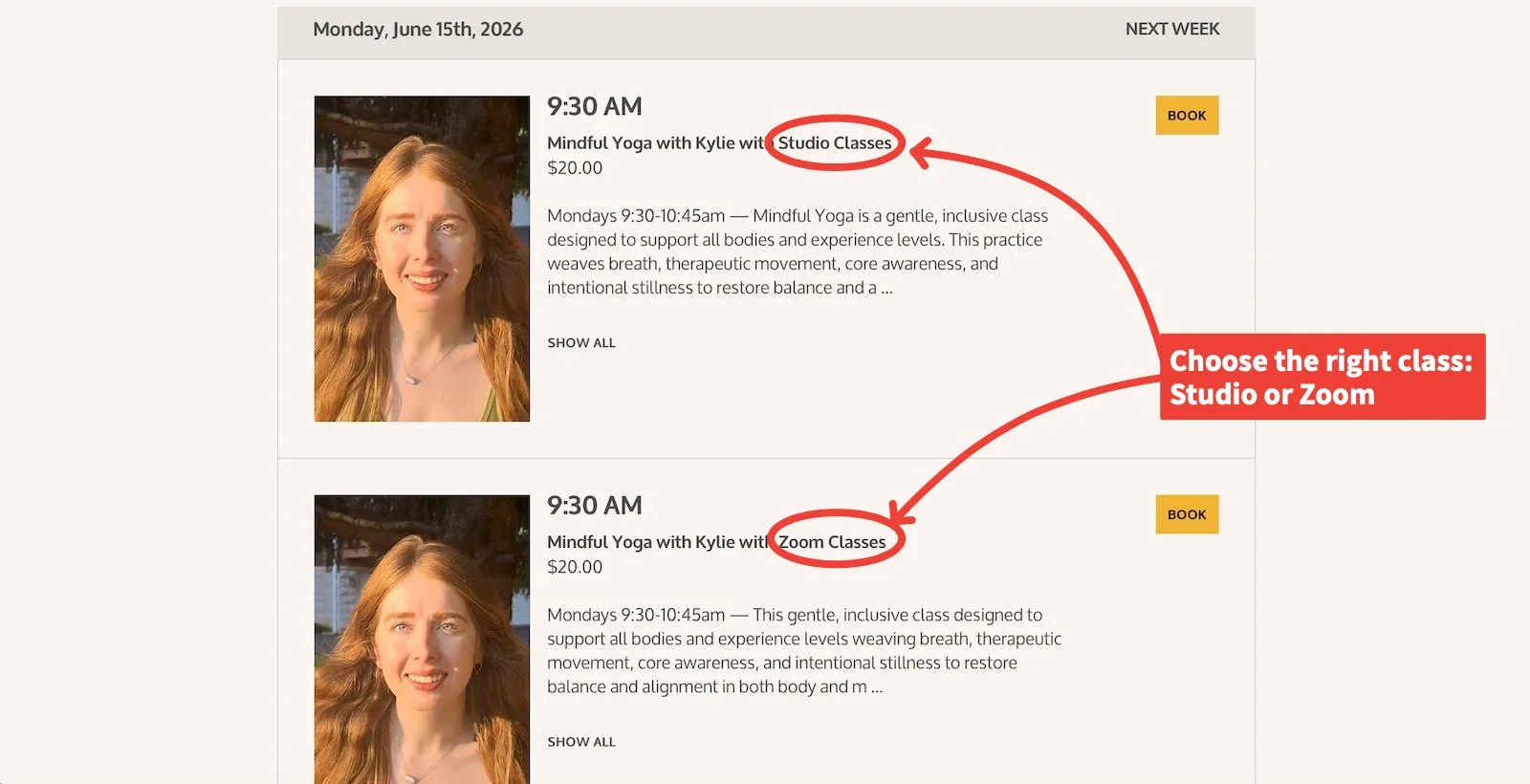
Some classes are offered in two separate listings:

Studio Classes
Choose this option if you want to come to the studio in person.

Zoom Classes
Choose this option if you want to attend online from home.

For example, you may see:

Mindful Yoga with Kylie with Studio Classes
and then underneath it:

Mindful Yoga with Kylie with Zoom Classes

Please make sure you click Book next to the correct option.


Step 5: Click Book

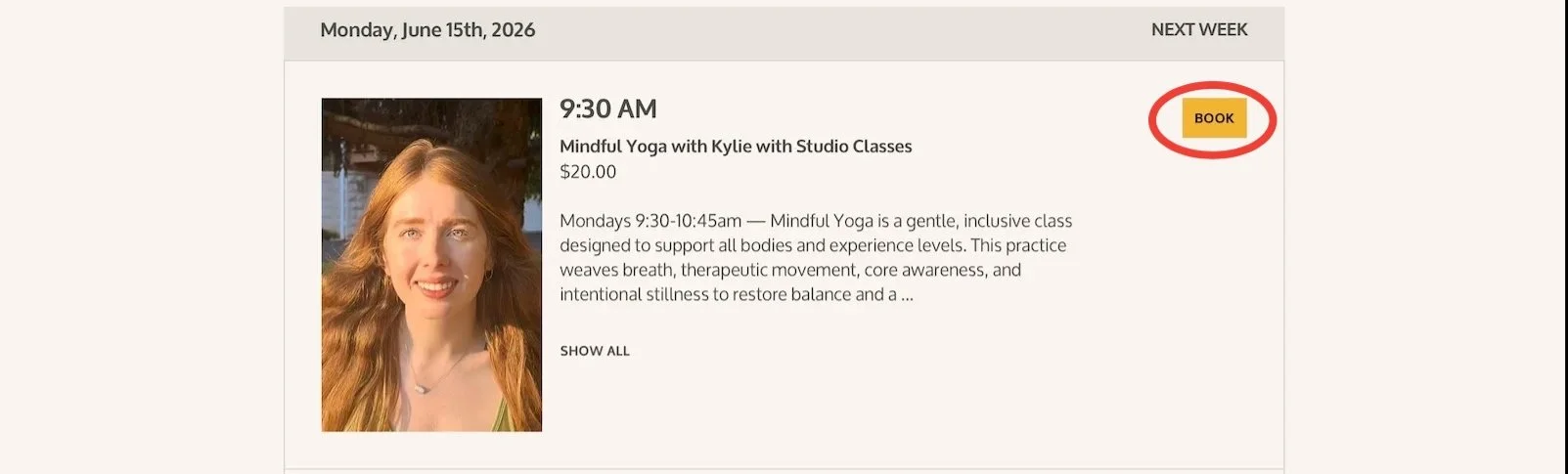
When you find the class you want, click the yellow Book button on the right side of the class listing.

Yoga Among Friends Class listing with Book button circled in red

Step 6: Review the class you selected

After you click Book, you will see a page showing the class you selected.

Please check:

The class name
The teacher
The date
The time
Whether it says Studio Classes or Zoom Classes

If everything looks correct, continue to the information form below.


Step 7: Enter your information

Fill in the required fields, including:

First name
Last name
Phone
Email
Full address

You will also see checkboxes for studio policies and email list acknowledgment.

Please read and check the required boxes before continuing.


Step 8: Agree to the terms

Near the bottom of the form, you will see the studio waiver and policies.

Check the box that says:

I have read and agree to the terms above

Then click:

Continue to Payment


Step 9: Enter payment or use a subscription, gift, or coupon code

On the checkout page, you will see your order summary.

If you are paying for a single class, enter your credit or debit card information, then click:

Pay & Confirm

If you have a subscription, package, gift certificate, or coupon code, look for Package, gift, or coupon code.

Click the plus sign, enter your code, and click Apply.


Step 10: Confirm your registration

After your payment or code is accepted, click:

Pay & Confirm

or, if your total is $0 after applying a code:

Confirm


Step 11: Look for the confirmation screen

When your registration is complete, you will see a confirmation message that says:

Appointment Confirmed

or

Your class is confirmed

You may also see buttons to add the class to your calendar.


Step 12: Check your email

You will also receive a confirmation email from Yoga Among Friends.

The email will include:

The class name
The date and time
The studio address for in-person classes
A link to change or cancel your class
Calendar buttons, if you would like to add the class to your calendar

For Zoom classes, please watch your email for the Zoom class information.


Still need a bit of help?

If you have questions or need help registering, feel free to contact us.


How to Find Your Zoom Link

How to Find Your Zoom Link

Help Center / Registration

Where to find your Zoom Link

If you’ve registered for an online class at Yoga Among Friends, your Zoom link is available in three possible places:

  1. Your initial confirmation email

  2. Your 24-hour and 2-hour reminder emails

  3. Inside your Yoga Among Friends online account under Studio + Online Classes → Login → Appointments → Upcoming

How to Find Your Zoom Link in Your Yoga Among Friends Account (Step-by-Step Guide)

This guide walks you through how to access your account and find your Zoom link before class begins.


❗️Important Note Before You Begin

You must have created an account with your email and a password (or logged in) before registering for the class in order to find the Zoom link in your Yoga Among Friends account.

If you registered as a guest without creating an account, you will not be able to lot find the Zoom link in your account. In that case, please use the link provided in your email confirmation or reminder emails.


Step 1 — Go to the Yoga Among Friends Scheduling Page

  1. Visit:
    yogaamongfriends.com → Schedule → Studio + Online Yoga Classes

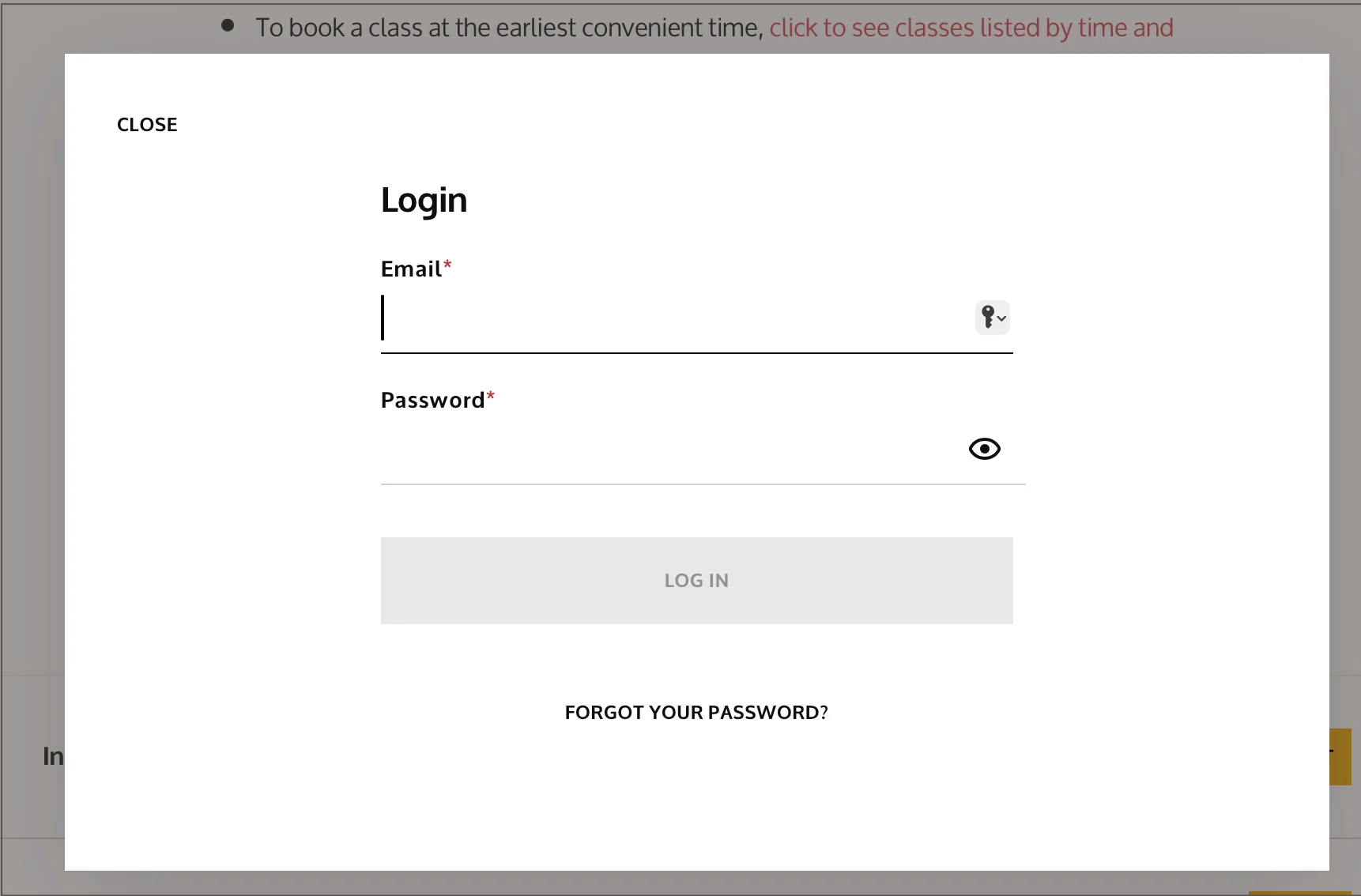
  2. Near the top, right of the schedule page, click Login.

 
Screenshot of the login screen

Step 2 — Log In to Your Account

  1. Enter the email address you used when registering for class.

  2. Enter your password, or click Forgot Password if you need to reset it.

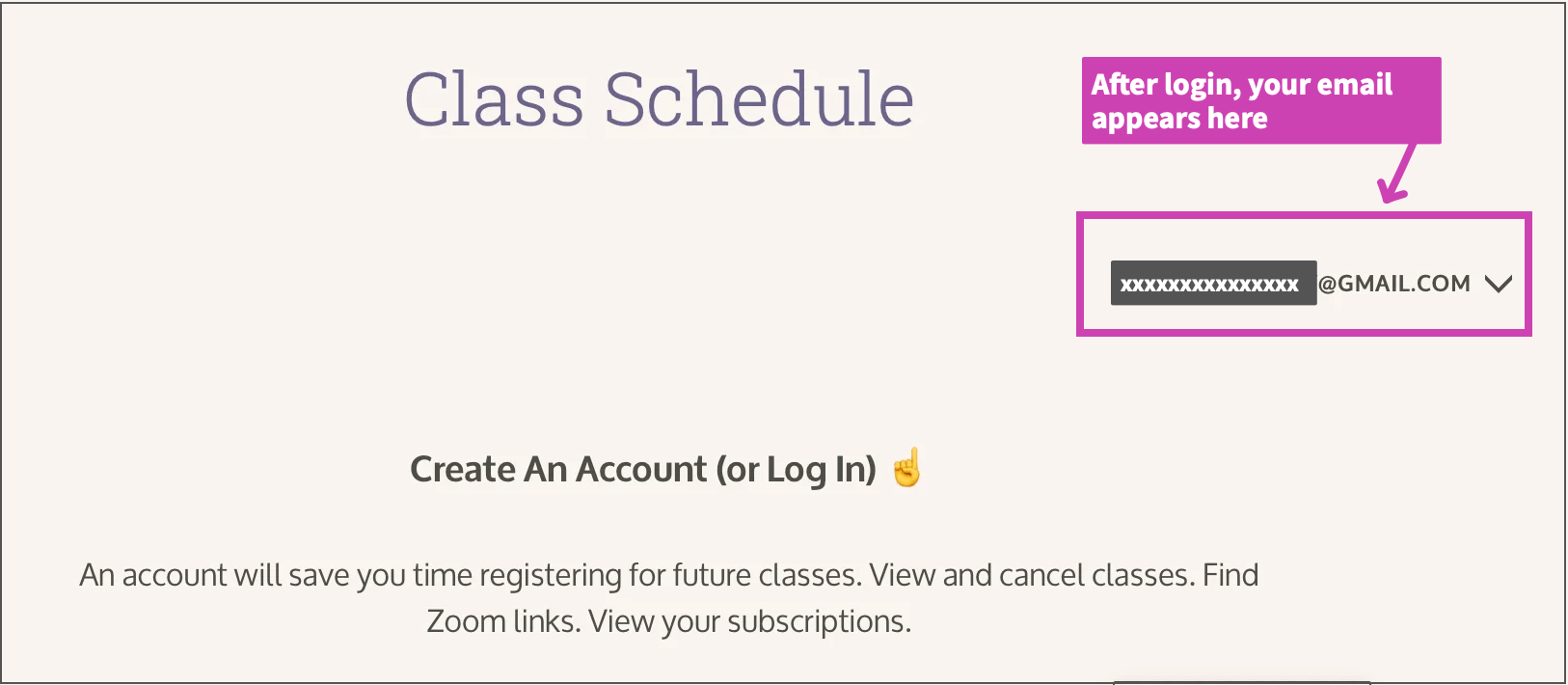
Once logged in, you will see your email address appear where the Login button used to be.

Screenshot of schedule page showing email address after login
 

Step 3 — Open Your Appointments

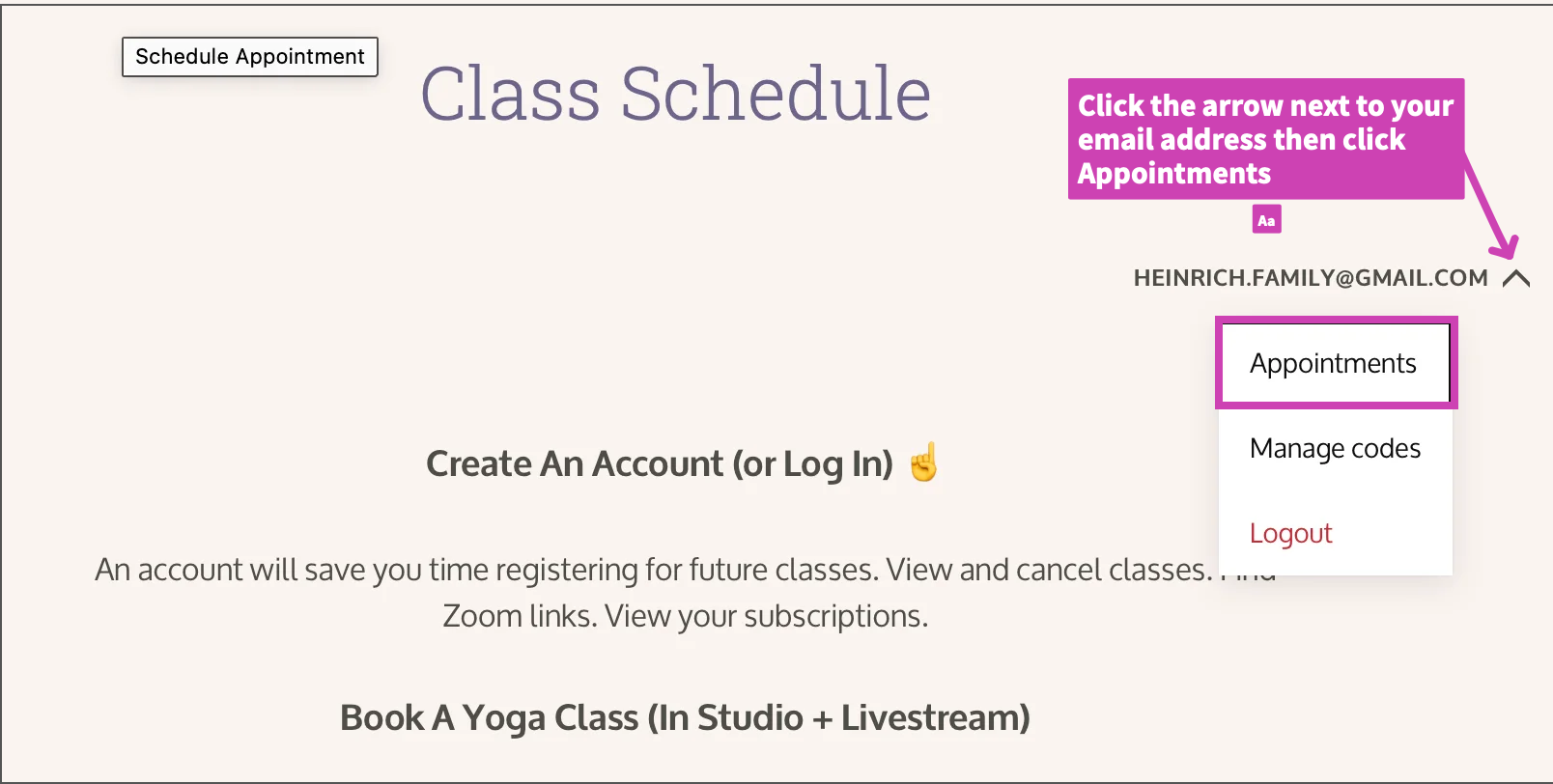
  1. Click the arrow next to your email address.

  2. Select Appointments from the dropdown menu.

 
Screenshot showing where to find the Zoom link
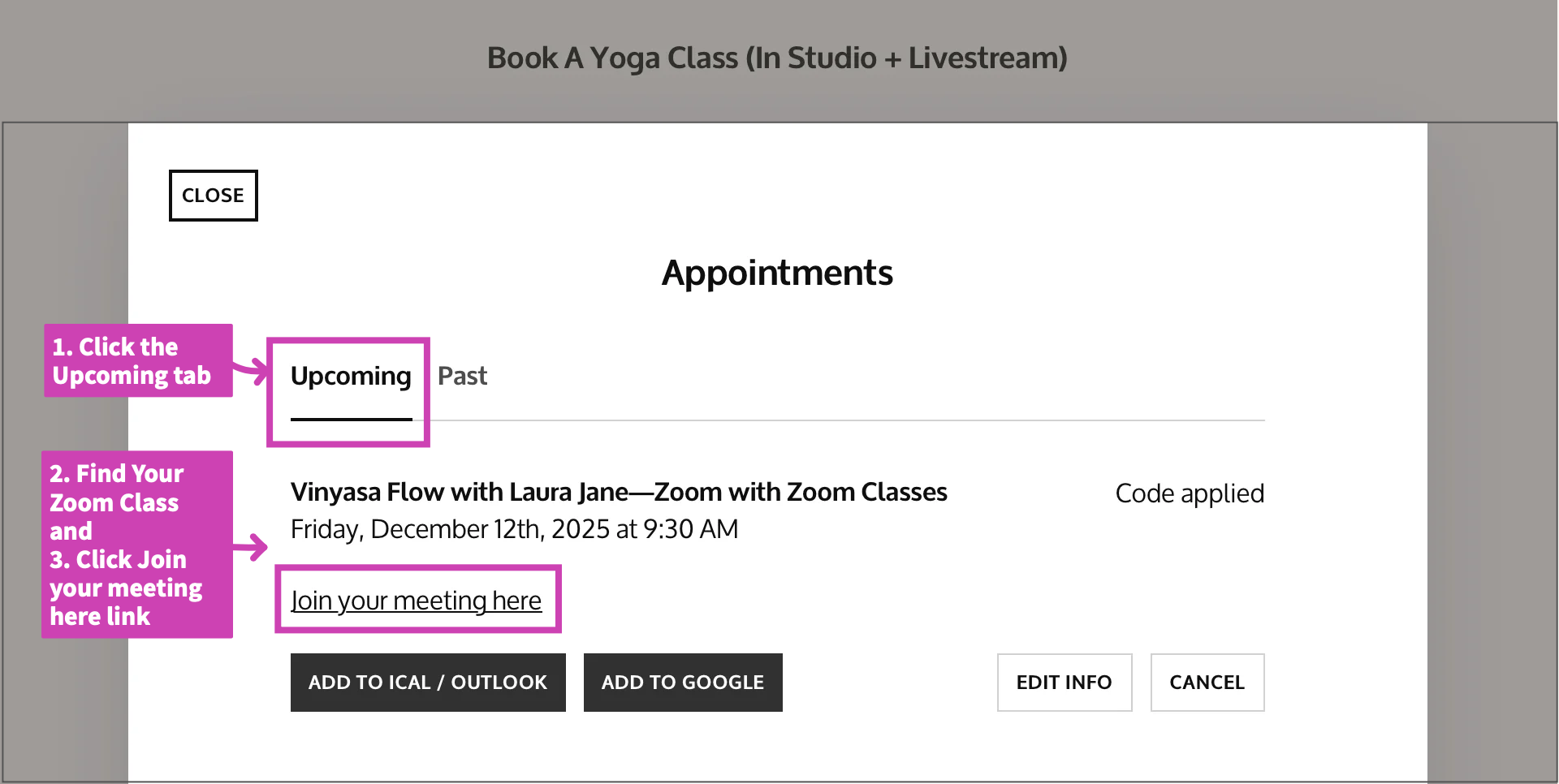
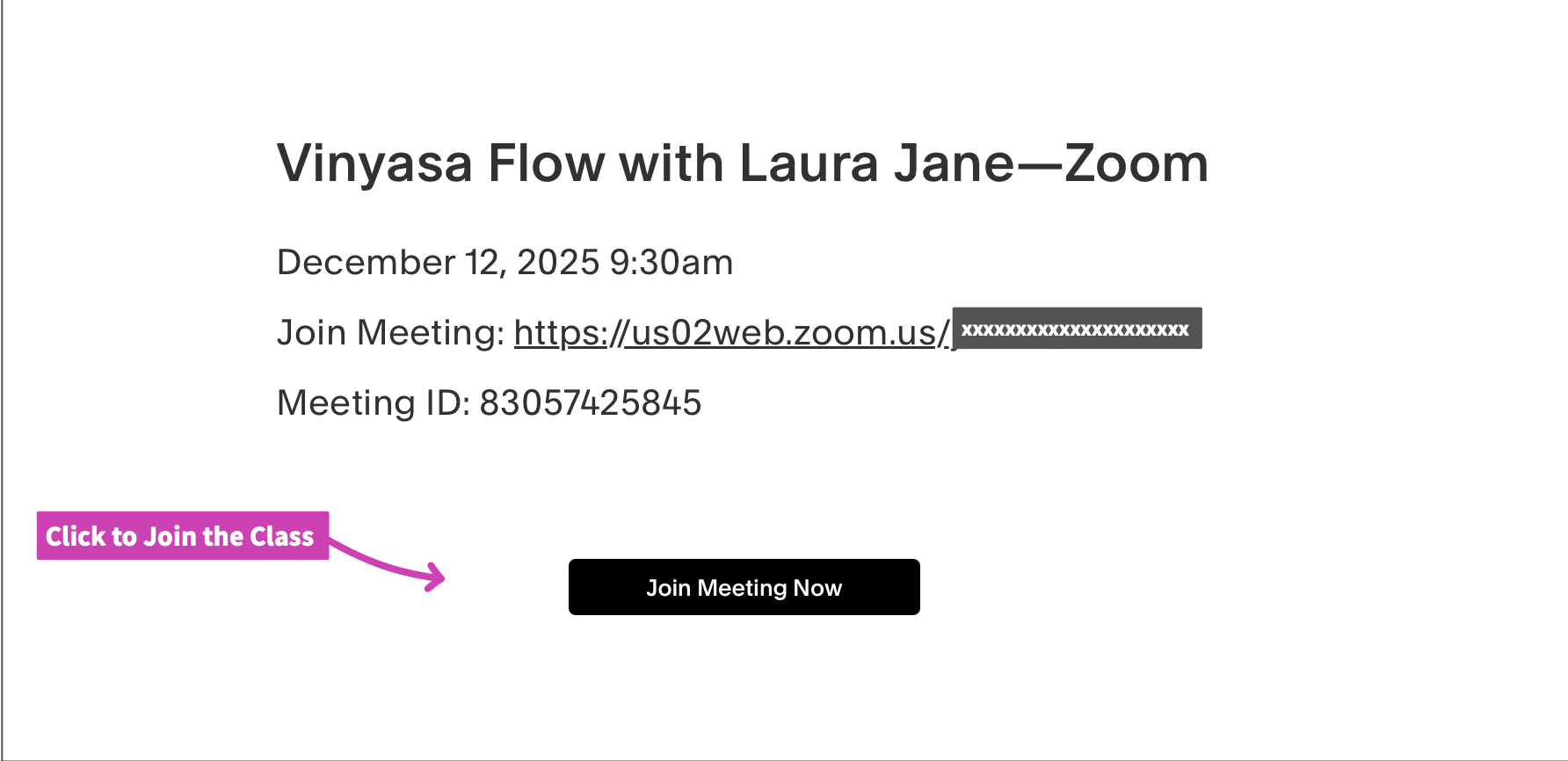
Example of Zoom Class with Zoom link and Button to join

Step 4 — View Your Upcoming Classes

  1. Click the Upcoming tab.

  2. Locate the online class you registered for. You will see the class name, date, and details.

  3. Click the link that says:
    “Join your meeting here”

  4. On the next screen, click the button that says:
    “Join your meeting here” to open the Zoom meeting window for the class.


If You Can't Find Your Zoom Link

Try the following:

✔ Check your email

  • Search your inbox for: “Yoga Among Friends”

  • Look for your confirmation email or your reminder emails (sent 24 hours and 2 hours before class).

✔ Check your spam or promotions folder

Email providers occasionally filter automated messages.

✔ Log out and back in

Sometimes the Appointments tab refreshes after a new login.

✔ Make sure you used the same email address

Students sometimes register with a different email than the one they try to log in with.

Still Need Help?

We’re happy to assist. Contact us.